Platform Integration
How to Sync Shopify With a Warehouse Management System
Learn how to build a reliable Shopify WMS integration. Covers bidirectional sync for inventory, orders, fulfillments, and returns using n8n.
David Yu · March 23, 2026 · 20 min read
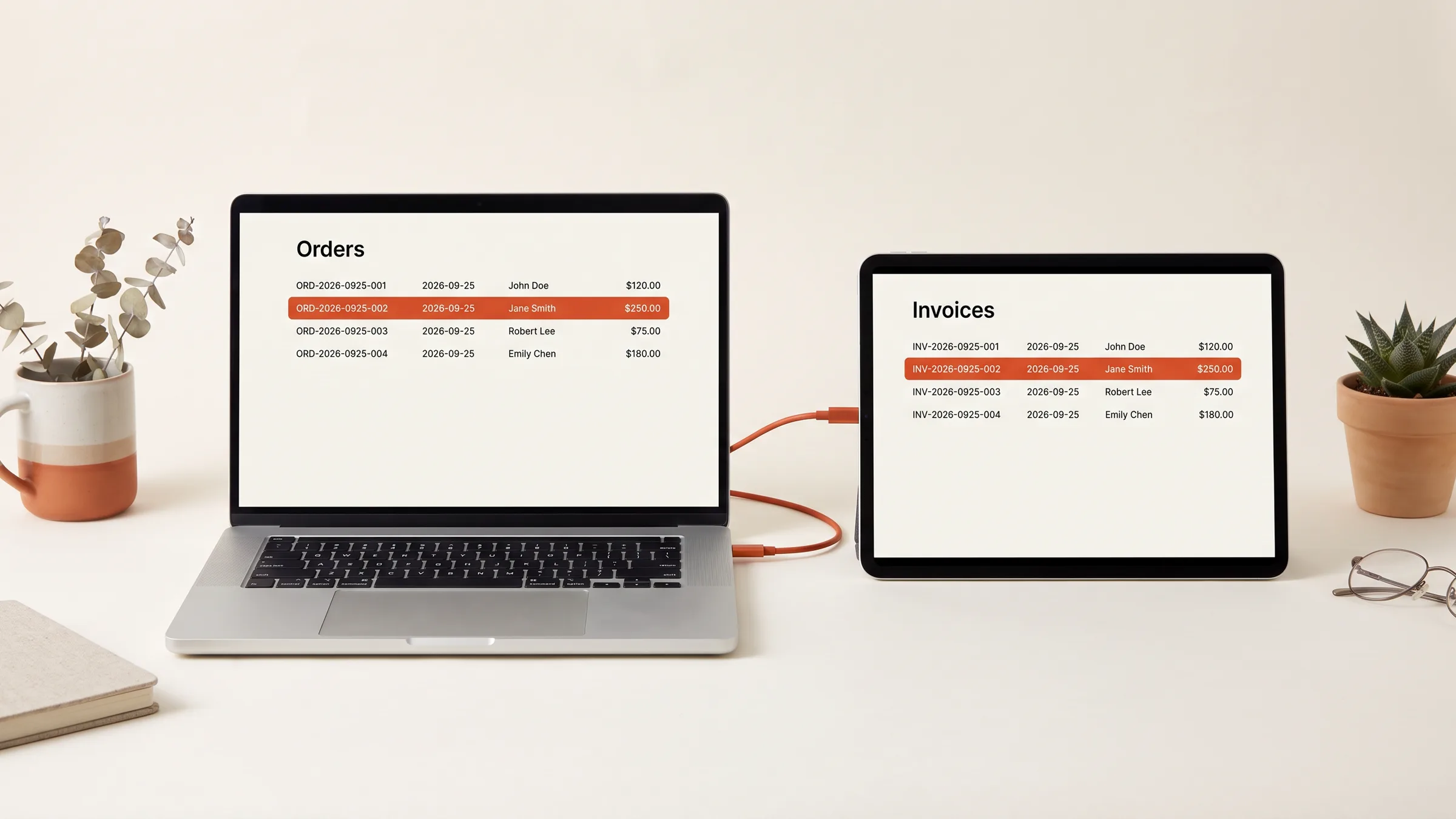
Picture this: you are running a DTC brand with 500 orders a day flowing through Shopify. Your warehouse management system shows 120 units of your bestselling SKU. Shopify shows 87. Your 3PL says they physically counted 104 this morning. A customer just placed an order for 12 units, and nobody knows which number to trust.
Meanwhile, three orders from last night are sitting in Shopify marked "unfulfilled" even though the warehouse shipped them hours ago. Tracking numbers exist in the WMS but never made it back to Shopify, so customers are emailing support asking where their packages are.
This is what happens when your Shopify-to-WMS integration is held together with duct tape -- a native app connector that "mostly works," manual CSV exports filling the gaps, and an ops person spending two hours every morning reconciling counts by hand.
Here is how to build a Shopify WMS integration that actually stays in sync -- covering the data flows that matter, the architecture patterns that work, and the failure modes you need to plan for.
Why Shopify and WMS Systems Drift Out of Sync
Before building anything, you need to understand why the sync breaks in the first place. There are four root causes, and most stores are dealing with all of them simultaneously.
Batch Updates vs. Real-Time Events
Most WMS platforms update inventory in batches. A warehouse worker completes a cycle count, scans receiving for a new shipment, or processes a batch of returns -- and the WMS updates its internal counts. But these updates often happen on a schedule (every 5 minutes, every 15 minutes, or worse, once an hour) rather than in real time.
Shopify, on the other hand, processes orders instantly. A customer buys 3 units at 2:03 PM, and Shopify decrements immediately. But if the WMS batch update does not run until 2:15 PM, there is a 12-minute window where the two systems disagree. During a flash sale or product launch, that 12-minute window is enough for dozens of orders to oversell a SKU.
API Lag and Rate Limits
Even when both systems try to sync in real time, API constraints create delays. Shopify's Admin API uses a leaky bucket rate limiter -- you get a burst of requests, but sustained high-volume calls get throttled. A WMS trying to push inventory updates for 2,000 SKUs will hit the ceiling quickly and start receiving 429 (Too Many Requests) responses.
If the WMS does not handle rate limits gracefully -- queuing and retrying rather than dropping failed calls -- updates get lost silently. Your inventory counts drift, and nobody notices until a customer orders something you do not have.
Manual Overrides Without Propagation
This one is subtle and incredibly common. Someone on your ops team manually adjusts inventory in Shopify because a customer called about a damaged item. Someone at the warehouse manually adjusts the WMS count after a cycle count. Neither adjustment propagates to the other system.
Over time, these one-off manual changes accumulate. After a month of small manual tweaks in both systems, your counts can be off by 10-15% across your catalog -- and there is no audit trail to trace where the drift started.
Multi-Location Complexity
The moment you add a second warehouse, a retail location, or a 3PL partner, the complexity multiplies. Shopify tracks inventory per location. Your WMS tracks inventory per warehouse. Your 3PL has its own system entirely. Each location might have different SKU naming conventions, different unit-of-measure standards, and different update frequencies.
If your integration only syncs inventory for one location, the other locations show stale data in Shopify -- which can mean phantom inventory that customers can purchase but nobody can actually ship.
What Data Needs to Sync (and in Which Direction)
A complete Shopify-WMS integration has four data streams, each with its own direction and timing requirements.
| Data Stream | Direction | Timing | Priority |
|---|---|---|---|
| Orders | Shopify → WMS | Real-time (seconds) | Critical |
| Inventory levels | WMS → Shopify | Near-real-time (minutes) | Critical |
| Fulfillments + tracking | WMS → Shopify | Real-time (minutes) | High |
| Returns + restocking | Bidirectional | Near-real-time | High |
Orders: Shopify to WMS
When a customer places an order in Shopify, the WMS needs to know about it immediately so warehouse staff can pick, pack, and ship. The order payload should include:
- Line items with SKU, quantity, and any customization notes
- Shipping address and selected shipping method
- Order priority or tags (e.g., VIP customer, expedited shipping, gift wrapping)
- Fulfillment location assignment (which warehouse should handle this order)
Inventory Levels: WMS to Shopify
The WMS is the source of truth for physical inventory. Stock levels change constantly -- receiving shipments, fulfilling orders, processing returns, cycle count adjustments, damage write-offs. Every change needs to flow back to Shopify so the storefront shows accurate availability.
Fulfillments and Tracking: WMS to Shopify
When the warehouse ships an order, two things need to happen in Shopify: the order gets marked as fulfilled, and the tracking number gets attached so the customer receives a shipping confirmation email. If this sync fails, customers see "unfulfilled" in their order status even though the package is already in transit.
Returns and Restocking: Bidirectional
Returns flow in both directions. A customer initiates a return in Shopify (or through a return portal), the WMS needs to know to expect the incoming package, and once the warehouse receives and inspects the return, the restocking decision flows back to Shopify to update inventory and process the refund.
Common WMS Platforms and Their Integration Patterns
Different WMS platforms offer different integration approaches. Understanding what you are working with determines your architecture.
ShipHero
ShipHero provides a GraphQL API (endpoint: https://public-api.shiphero.com/graphql) with OAuth 2.0 authentication. It also has a native Shopify app that handles basic order and inventory sync out of the box. For custom integrations, you push orders via GraphQL mutations and pull inventory levels and fulfillment statuses via queries. ShipHero supports webhooks for shipment updates, which simplifies the tracking sync.
ShipBob
ShipBob's Shopify integration is plug-and-play via the Shopify App Store. Orders sync automatically, inventory updates in near-real-time, and multi-location support is built in. For stores that only use ShipBob, the native integration is usually sufficient. Where it gets complicated is when ShipBob is one of multiple fulfillment locations -- then you need orchestration logic to route orders correctly.
Extensiv (formerly 3PL Central)
Extensiv provides a REST API for order management and inventory queries. It is widely used by third-party logistics providers, so if your 3PL uses Extensiv as their WMS, your integration talks to the Extensiv API rather than a proprietary system. The API supports order creation, inventory queries by item and location, and shipment tracking retrieval.
Custom or Legacy WMS
Many warehouses run proprietary or legacy WMS software that does not offer a modern API. In these cases, the integration pattern is typically SFTP-based: you drop order files (CSV or XML) into an SFTP directory, and the WMS picks them up on a schedule. Fulfillment confirmations come back via a separate SFTP directory. This adds latency but is often the only option for older systems.
Building a Bidirectional Sync Pipeline With n8n
Here is how to build a production-grade Shopify-WMS sync using n8n. This architecture works regardless of which WMS you use -- you just swap out the WMS-specific API calls.
Pipeline 1: Order Flow (Shopify to WMS)
This pipeline triggers on every new paid order and pushes it to the WMS for fulfillment.
Shopify Webhook (orders/paid)
  → Validate webhook signature
  → Check idempotency (skip if already processed)
  → Determine fulfillment location based on routing rules
  → Transform order to WMS format
  → Push order to WMS API
  → Log success/failure
  → On failure: queue for retry + alert ops team
Start with the webhook trigger. Shopify fires the orders/paid webhook when payment is confirmed:
// n8n Function node: Validate and extract order data
const crypto = require('crypto');
const secret = $env.SHOPIFY_WEBHOOK_SECRET;
const hmac = crypto
  .createHmac('sha256', secret)
  .update(JSON.stringify($input.body))
  .digest('base64');

if (hmac !== $input.headers['x-shopify-hmac-sha256']) {
  throw new Error('Invalid webhook signature');
}

const order = $input.body;
return {
  order_id: order.id,
  order_number: order.order_number,
  line_items: order.line_items.map(item => ({
    sku: item.sku,
    quantity: item.quantity,
    title: item.title,
    requires_shipping: item.requires_shipping,
    fulfillment_service: item.fulfillment_service,
    grams: item.grams
  })),
  shipping_address: order.shipping_address,
  shipping_method: order.shipping_lines?.[0]?.code || 'standard',
  tags: order.tags,
  note: order.note,
  created_at: order.created_at
};
Next, add order routing logic. This determines which warehouse or 3PL handles each order:
// n8n Function node: Route order to correct warehouse
const order = $input.item.json;
const shippingZone = order.shipping_address?.province_code;
const shippingCountry = order.shipping_address?.country_code;

// Configuration-driven routing (load from Google Sheet or database)
const routingRules = {
  // East Coast warehouse handles eastern US states
  eastCoast: ['NY', 'NJ', 'PA', 'MA', 'CT', 'VA', 'NC', 'FL', 'GA', 'MD'],
  // West Coast warehouse handles western US states
  westCoast: ['CA', 'WA', 'OR', 'AZ', 'NV', 'CO', 'UT'],
  // International orders route to the 3PL with customs expertise
  international: 'intl-3pl'
};

let warehouse;
if (shippingCountry !== 'US') {
  warehouse = routingRules.international;
} else if (routingRules.eastCoast.includes(shippingZone)) {
  warehouse = 'warehouse-east';
} else if (routingRules.westCoast.includes(shippingZone)) {
  warehouse = 'warehouse-west';
} else {
  warehouse = 'warehouse-east'; // Default fallback
}

// Check if the assigned warehouse has stock for all line items
// If not, fall back to the warehouse that does
return { ...order, assigned_warehouse: warehouse };
Pro tip: Store your routing rules in a Google Sheet or Airtable base instead of hardcoding them. When you add a new warehouse, change 3PL providers, or adjust routing zones, it becomes a spreadsheet edit instead of a workflow change.
Pipeline 2: Inventory Sync (WMS to Shopify)
This is the most critical pipeline. It keeps Shopify's available quantities aligned with what the warehouse actually has on shelves.
Trigger: WMS webhook OR scheduled poll (every 5 minutes)
  → Fetch current WMS inventory levels (all SKUs)
  → Fetch current Shopify inventory levels (all locations)
  → Compare: identify discrepancies
  → For each discrepancy:
    → Calculate adjustment delta
    → Push inventory adjustment to Shopify API
    → Log the correction
  → If discrepancy exceeds threshold: alert ops team
Here is the core comparison logic:
// n8n Function node: Compare WMS and Shopify inventory
const wmsInventory = $input.item.json.wms_levels; // Array of {sku, quantity, location}
const shopifyInventory = $input.item.json.shopify_levels; // Array of {sku, available, location_id}

// Build lookup map for Shopify levels
const shopifyMap = {};
for (const item of shopifyInventory) {
  shopifyMap[`${item.sku}-${item.location_id}`] = item.available;
}

// Find discrepancies
const adjustments = [];
for (const wmsItem of wmsInventory) {
  const key = `${wmsItem.sku}-${wmsItem.shopify_location_id}`;
  const shopifyQty = shopifyMap[key];

  if (shopifyQty === undefined) {
    // SKU exists in WMS but not mapped in Shopify -- flag for review
    adjustments.push({
      sku: wmsItem.sku,
      type: 'unmapped',
      wms_qty: wmsItem.quantity
    });
    continue;
  }

  const delta = wmsItem.quantity - shopifyQty;
  if (delta !== 0) {
    adjustments.push({
      sku: wmsItem.sku,
      inventory_item_id: wmsItem.shopify_inventory_item_id,
      location_id: wmsItem.shopify_location_id,
      current_shopify: shopifyQty,
      current_wms: wmsItem.quantity,
      delta: delta,
      type: Math.abs(delta) > 20 ? 'large_discrepancy' : 'auto_correct'
    });
  }
}

return { adjustments, total_checked: wmsInventory.length };
For pushing corrections to Shopify, use the Inventory Levels API:
// n8n Function node: Push inventory corrections to Shopify
const adjustments = $input.item.json.adjustments
  .filter(a => a.type === 'auto_correct');

const results = [];
for (const adj of adjustments) {
  const response = await fetch(
    `https://${shop}/admin/api/2024-10/inventory_levels/set.json`,
    {
      method: 'POST',
      headers: {
        'X-Shopify-Access-Token': accessToken,
        'Content-Type': 'application/json'
      },
      body: JSON.stringify({
        location_id: adj.location_id,
        inventory_item_id: adj.inventory_item_id,
        available: adj.current_wms
      })
    }
  );

  results.push({
    sku: adj.sku,
    old_qty: adj.current_shopify,
    new_qty: adj.current_wms,
    status: response.ok ? 'corrected' : 'failed'
  });

  // Respect Shopify rate limits: pause between calls
  await new Promise(resolve => setTimeout(resolve, 250));
}

return { corrections: results };
Important: Set a threshold for automatic corrections. Small discrepancies (under 20 units) can be corrected automatically. Large discrepancies should trigger a Slack alert and require human review -- they often indicate a deeper issue like a missed shipment receipt, a lost pallet, or a data entry error in the WMS.
Is your half-built automation a six-week finish?
Take the free Finish Score. Ten questions, two minutes, and a report on what to settle before you build.
Take the Finish ScorePipeline 3: Fulfillment and Tracking (WMS to Shopify)
When the warehouse ships an order, the tracking number and carrier information need to flow back into Shopify. This triggers the shipping confirmation email to the customer.
WMS Webhook (shipment_created) OR poll WMS for new shipments
  → Match shipment to Shopify order (via order ID or order number)
  → Fetch the fulfillment order ID from Shopify
  → Create fulfillment with tracking info
  → Verify fulfillment was created successfully
  → Log completion
// n8n Function node: Create fulfillment in Shopify with tracking
const shipment = $input.item.json;

// First, get the fulfillment order for this Shopify order
const fulfillmentOrders = await fetch(
  `https://${shop}/admin/api/2024-10/orders/${shipment.shopify_order_id}/fulfillment_orders.json`,
  {
    headers: { 'X-Shopify-Access-Token': accessToken }
  }
);

const fulfillmentOrder = fulfillmentOrders.fulfillment_orders
  .find(fo => fo.status === 'open' || fo.status === 'in_progress');

if (!fulfillmentOrder) {
  // Already fulfilled or cancelled -- log and skip
  return { status: 'skipped', reason: 'no_open_fulfillment_order' };
}

// Create the fulfillment with tracking
const fulfillment = await fetch(
  `https://${shop}/admin/api/2024-10/fulfillments.json`,
  {
    method: 'POST',
    headers: {
      'X-Shopify-Access-Token': accessToken,
      'Content-Type': 'application/json'
    },
    body: JSON.stringify({
      fulfillment: {
        line_items_by_fulfillment_order: [{
          fulfillment_order_id: fulfillmentOrder.id
        }],
        tracking_info: {
          company: shipment.carrier,    // "UPS", "FedEx", "USPS"
          number: shipment.tracking_number,
          url: shipment.tracking_url
        },
        notify_customer: true
      }
    })
  }
);

return {
  status: 'fulfilled',
  shopify_order_id: shipment.shopify_order_id,
  tracking: shipment.tracking_number
};
Common gotcha: Some WMS platforms generate tracking numbers before the carrier has actually scanned the package. If you push that tracking number to Shopify immediately, the customer gets a shipping confirmation email with a tracking link that shows "not found" for 12-24 hours. Consider adding a 2-4 hour delay before pushing tracking to Shopify, or poll the carrier's tracking API to confirm the number is active before syncing.
Pipeline 4: Returns and Restocking (Bidirectional)
Returns are the most complex data flow because they move in both directions and involve conditional logic.
Shopify Webhook (refunds/create)
  → Parse refund line items
  → Determine if physical return is expected
  → Create return authorization in WMS (RMA)
  → WMS receives and inspects return
  → WMS webhook: return received
  → Update Shopify inventory (restock or write off)
  → Update Shopify order with return status
// n8n Function node: Create RMA in WMS from Shopify refund
const refund = $input.item.json;

const returnItems = refund.refund_line_items
  .filter(item => item.restock_type === 'return')
  .map(item => ({
    sku: item.line_item.sku,
    quantity: item.quantity,
    reason: refund.note || 'Customer return',
    original_order_id: refund.order_id,
    condition: 'pending_inspection' // WMS will update after inspection
  }));

if (returnItems.length === 0) {
  // No physical returns expected (e.g., refund without return)
  return { status: 'skipped', reason: 'no_physical_returns' };
}

// Push RMA to WMS
const rma = await createWmsReturnAuthorization({
  shopify_order_id: refund.order_id,
  items: returnItems,
  expected_carrier: 'customer_provided',
  return_to_location: determineReturnWarehouse(refund)
});

return { status: 'rma_created', rma_id: rma.id };
When the warehouse receives the return and updates the WMS, the restocking decision flows back:
// n8n Function node: Process WMS return receipt
const returnReceipt = $input.item.json;

for (const item of returnReceipt.items) {
  if (item.inspection_result === 'restock') {
    // Item is in sellable condition -- restock in Shopify
    await adjustShopifyInventory(
      item.shopify_inventory_item_id,
      item.location_id,
      item.quantity  // Positive delta to add back
    );
  } else if (item.inspection_result === 'damaged') {
    // Item is not sellable -- do NOT restock
    // Log for write-off accounting
    await logDamagedReturn(item);
  }
}
Error Handling and Retry Logic
The difference between an integration that works in a demo and one that works in production is error handling. Here are the failure modes you must account for.
Webhook Delivery Failures
Shopify webhooks have a strict 5-second timeout. If your endpoint does not respond in time, Shopify retries up to 19 times over 48 hours before removing the subscription entirely. Build your webhook handler to acknowledge immediately and process asynchronously:
// Pattern: Acknowledge fast, process later
// Webhook handler responds with 200 immediately
// Actual processing happens in a separate queue

// n8n approach: Webhook node -> Respond to Webhook node (200 OK)
//   -> then continue with processing nodes
Idempotency
Both Shopify webhooks and WMS callbacks can fire multiple times for the same event. Every pipeline needs an idempotency check. Maintain a log of processed event IDs (in a database, Google Sheet, or Airtable) and skip duplicates:
// Before processing any event
const eventId = `${eventType}-${orderId}-${timestamp}`;
const alreadyProcessed = await checkProcessingLog(eventId);

if (alreadyProcessed) {
  return { status: 'skipped', reason: 'duplicate_event' };
}

// Process the event...

// After successful processing
await logProcessedEvent(eventId);
Rate Limit Management
When pushing bulk inventory updates to Shopify, you will hit rate limits. Read the X-Shopify-Shop-Api-Call-Limit response header to track your remaining capacity and throttle proactively:
// Rate-limit-aware API call wrapper
async function shopifyApiCall(url, options) {
  const response = await fetch(url, options);

  const callLimit = response.headers.get('X-Shopify-Shop-Api-Call-Limit');
  // Format: "32/40" (used/available)
  const [used, available] = callLimit.split('/').map(Number);
  const remaining = available - used;

  if (remaining <= 4) {
    // Approaching limit -- back off
    await new Promise(resolve => setTimeout(resolve, 2000));
  }

  if (response.status === 429) {
    // Hit the limit -- wait and retry
    const retryAfter = response.headers.get('Retry-After') || 2;
    await new Promise(resolve =>
      setTimeout(resolve, retryAfter * 1000)
    );
    return shopifyApiCall(url, options); // Retry
  }

  return response;
}
Dead Letter Queue
When a sync operation fails after all retries, do not just drop it. Push it to a dead letter queue -- a Google Sheet, database table, or Slack channel where failed operations accumulate for manual review. This ensures nothing falls through the cracks:
Failed sync attempt
  → Retry 3 times with exponential backoff (1s, 4s, 16s)
  → Still failing? Push to dead letter queue
  → Alert ops team in Slack with full context
  → Manual resolution workflow
Inventory Reconciliation: The Safety Net
Even with a well-built integration, discrepancies will appear. Hardware glitches, manual overrides, API edge cases, and timing issues all contribute to gradual drift. A scheduled reconciliation job is your safety net.
Run this workflow daily (or more frequently during peak periods):
Scheduled trigger (daily at 6 AM)
  → Fetch full inventory snapshot from WMS
  → Fetch full inventory snapshot from Shopify (all locations)
  → Cross-reference by SKU and location
  → Categorize discrepancies:
    → Minor (1-5 units): auto-correct
    → Moderate (6-20 units): correct + notify ops
    → Major (20+ units): hold + require manual approval
  → Generate reconciliation report
  → Send report via email + Slack
  → Log all corrections for audit trail
The reconciliation report should include:
- Total SKUs checked and how many had discrepancies
- Total units adjusted (positive and negative)
- Largest single discrepancy (for investigation)
- SKUs with recurring discrepancies (indicates a systemic issue)
- Unmapped SKUs (exist in one system but not the other)
If you are consistently correcting the same SKUs, that is a signal to investigate the root cause rather than just patching the numbers. Common culprits include bundle/kit logic that calculates component quantities differently across systems, or a product variant that was created in Shopify but never mapped to the corresponding WMS item.
Monitoring and Alerting
An integration without monitoring is a time bomb. You need to know when things break -- ideally before your customers tell you.
Essential Alerts
Set up notifications for these events at minimum:
- Sync pipeline failure: Any workflow error that prevents orders, inventory, or fulfillments from syncing
- Order stuck unfulfilled: Any order unfulfilled for more than 4 hours during business hours
- Tracking not received: Order shipped in the WMS but no tracking pushed to Shopify within 6 hours
- Large inventory discrepancy: Any single SKU off by more than 20 units
- Webhook subscription removed: Shopify removes a webhook subscription after too many delivery failures (this is catastrophic and needs immediate attention)
- API error rate spike: More than 5% of API calls failing within a 15-minute window
Health Check Dashboard
Build a simple dashboard (even a Google Sheet works) that shows:
- Last successful sync time for each pipeline
- Number of orders synced in the last 24 hours
- Number of inventory corrections in the last 24 hours
- Current dead letter queue depth
- WMS API response time (trending)
This gives your ops team a single place to check whether everything is healthy, without needing to dig through logs.
Choosing Your Integration Architecture
The right architecture depends on your volume, WMS platform, and technical resources.
| Scenario | Recommended Approach |
|---|---|
| Single 3PL with native Shopify app (ShipBob, ShipHero) | Use the native app + add monitoring and reconciliation |
| Multiple warehouses or 3PLs | Custom n8n pipeline with routing logic |
| Legacy WMS with no API | SFTP-based integration via n8n with polling |
| High volume (1,000+ orders/day) | Custom pipeline with message queue (Redis or RabbitMQ) |
| Simple setup, under 100 orders/day | Native app connector is probably sufficient |
If you are currently using a native Shopify app connector and it handles 90% of your needs, do not rip it out and build custom. Instead, layer monitoring and reconciliation on top. Add the n8n reconciliation job, set up the Slack alerts, and build the dead letter queue. These additions catch the 10% of failures the native app misses.
If your native connector is failing frequently, you are running multiple fulfillment locations, or you need conditional routing logic the app does not support, that is when a full custom pipeline pays for itself.
Quick-Start Checklist
If you are ready to build or improve your Shopify-WMS integration, here is the order of operations:
- Audit your current state. Pull inventory snapshots from both systems and quantify the discrepancy. This tells you how urgent the problem is.
- Map your data flows. Document which data needs to move, in which direction, and how often. Use the four-stream model from this guide.
- Start with the reconciliation job. Even before you fix the real-time sync, a daily reconciliation catches drift and gives you breathing room.
- Build order flow first. Orders flowing reliably from Shopify to the WMS is the highest-priority pipeline. Get this bulletproof before tackling the others.
- Add fulfillment and tracking sync. This is what your customers see. Once orders flow out reliably, make sure tracking flows back.
- Layer in inventory sync. Replace or supplement your existing connector with a sync pipeline that includes discrepancy detection and alerting.
- Set up monitoring. Alerts, dashboards, and the dead letter queue. Do not skip this -- it is what separates a fragile integration from a reliable one.
- Handle returns last. Returns are the most complex flow and the least time-sensitive. Get everything else stable first.
The infrastructure cost for this entire setup is modest: an n8n instance (self-hosted for $20-50/month or n8n Cloud), a Google Sheet or Airtable base for configuration and logging, and a Slack channel for alerts. The ROI shows up the first time a flash sale runs smoothly without a single oversell, or the first Monday morning your ops team does not spend two hours reconciling inventory counts by hand.
Is your half-built automation a six-week finish?
Take the free Finish Score. Ten questions, two minutes, and a report on what to settle before you build.
Take the Finish ScoreWant help mapping what to automate first?
Book a short call. No pitch deck, just a working session on where your operations leak time and money and what to fix first.
Book a callRelated Articles
Platform Integration
Shopify Multi-Location Inventory Sync: Stop Overselling
Stop overselling across Shopify locations. Build a real-time multi-location inventory sync system with free n8n templates, GraphQL examples, and reconciliation.
Jun 16, 2026 · 17 min read
Platform Integration
How to Automate Slack Alerts for Airtable Updates Using Make.com
Step-by-step guide to building Make.com scenarios that watch Airtable for changes and push formatted Slack notifications automatically.
Mar 26, 2026 · 13 min read
Platform Integration
Advanced Klaviyo Flows with n8n: Go Beyond Native Automations
Trigger Klaviyo emails from external data Shopify can't see. Step-by-step n8n workflows for cross-platform segmentation, custom events, and advanced flow logic.
Mar 23, 2026 · 17 min read
Platform Integration
Shopify to Google Sheets: Free Real-Time Dashboard (n8n Guide)
Build a live Shopify dashboard in Google Sheets using n8n webhooks — no paid apps, works on any plan. Step-by-step setup with ready-to-copy workflow templates.
Mar 23, 2026 · 19 min read
Platform Integration
How to Build a Shopify Subscription Management System
Reduce subscriber churn with automated dunning, win-back flows, and proactive retention. A technical guide to subscription automation for Shopify stores.
Mar 23, 2026 · 18 min read
Platform Integration
How to Connect Shopify to QuickBooks Automatically
A practical guide to syncing Shopify sales, refunds, fees, and payouts to QuickBooks Online. Covers native connectors, A2X, Synder, and custom workflows.
Mar 23, 2026 · 14 min read