Platform Integration
How to Automate Shopify Order Fulfillment End to End
Stop spending 3+ hours a day on manual fulfillment. Learn how to automate Shopify order fulfillment with routing, tracking, and fraud checks using n8n.
David Yu · March 23, 2026 · 15 min read
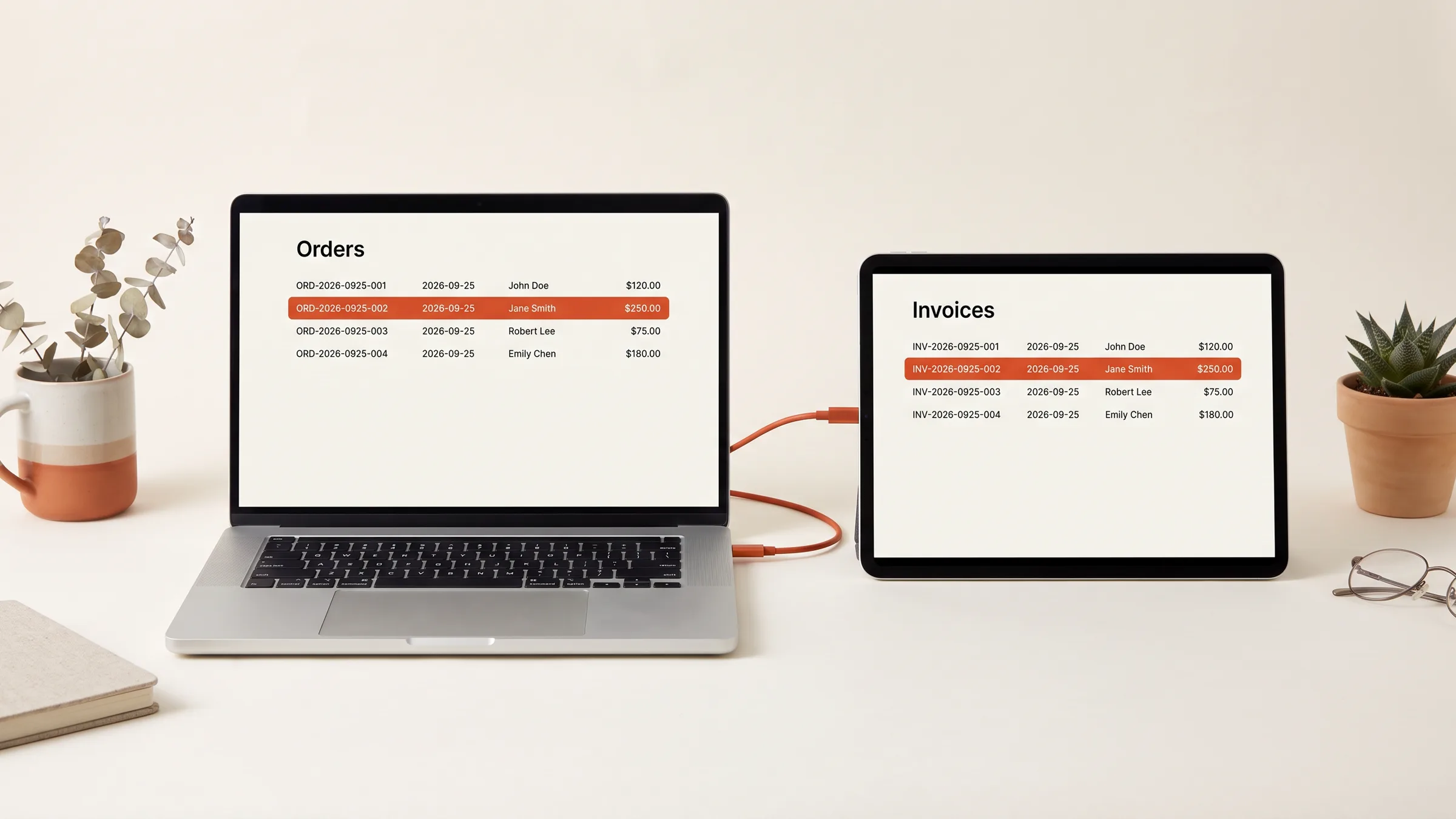
Picture this: you're running a DTC store doing $2M a year. Every morning, someone on your team opens the Shopify admin, scrolls through new orders, copies shipping addresses into your 3PL portal, sends tracking emails manually, and updates inventory counts in a spreadsheet. It takes three hours. Every single day.
On a good day, it's tedious. On a bad day -- a product launch, a flash sale, a holiday weekend -- it's a bottleneck that delays shipments, frustrates customers, and costs you real money in late-delivery refunds.
The frustrating part? Most of this work is purely mechanical. The same steps, the same decisions, the same copy-paste routine. It's the kind of work that automation was designed to eliminate.
Here's a complete guide to automating Shopify order fulfillment -- from the built-in settings most stores overlook, to a full n8n workflow that handles routing, tracking, fraud detection, and inventory updates without human intervention.
What Shopify Does Out of the Box
Before building custom automation, it's worth understanding what Shopify already offers. Many stores are leaving free automation on the table.
Auto-fulfillment settings. In your Shopify admin under Settings > Checkout, there's an option called "Order processing" that controls what happens after an order is paid. You can set it to automatically fulfill orders and notify customers. For stores selling digital products or using a single fulfillment location with no special handling requirements, this alone can save hours.
Fulfillment holds. Shopify lets you place automatic holds on orders that meet certain criteria -- high-risk fraud indicators, orders above a certain value, or orders requiring custom handling. This keeps your automation pipeline clean by pulling out orders that genuinely need human review.
Email notifications. Shopify's built-in notification system can send shipping confirmation and tracking update emails automatically. If you're still sending these manually, turn on the default templates immediately. You can customize them later.
Shopify Shipping. If you're fulfilling in-house and buying postage through Shopify Shipping, you can bulk-print labels and auto-generate tracking numbers for multiple orders at once. Combined with auto-fulfillment, this gets you 60-70% of the way to hands-free fulfillment for simple operations.
The problem is that most stores outgrow these basics quickly. The moment you add a second warehouse, a 3PL partner, conditional routing logic, or product-specific handling requirements, Shopify's native settings can't keep up.
Where Built-In Fulfillment Falls Short
Here's where the manual work creeps back in.
Multi-location routing. If you sell products stored in different warehouses -- say, apparel in one facility and accessories in another -- Shopify doesn't automatically route orders to the correct location based on product type. It uses a "smart" prioritization that considers proximity and stock levels, but it often gets it wrong, especially when your warehouses have overlapping inventory for some SKUs but not others.
3PL coordination. Most 3PLs require orders in a specific format, pushed to their system via API or SFTP. Shopify's auto-fulfillment doesn't handle this. You either install the 3PL's Shopify app (which varies wildly in quality) or manually export orders and upload them to the 3PL portal. Neither is great.
Conditional logic. Real fulfillment has rules. Subscription orders get a different packing slip. International orders need customs documentation. Orders over $200 get a handwritten thank-you card. Orders containing fragile items need special packaging. Shopify's native auto-fulfillment treats every order the same way.
Tracking synchronization. When your 3PL ships an order, you need the tracking number pushed back into Shopify so the customer gets notified. If this step fails -- and it does, regularly -- customers see "unfulfilled" in their order status even though the package is already en route. This generates support tickets, damages trust, and wastes your team's time.
Inventory reconciliation. Every fulfillment should decrement inventory. When you're fulfilling across multiple locations and systems, inventory counts can drift silently until a customer orders something you don't actually have in stock.
Shopify Flow for Fulfillment: What It Can and Can't Do
Shopify Flow is Shopify's built-in workflow automation tool, available on Advanced and Plus plans. It's the first place most merchants look when they want to add logic to their fulfillment process. Here's an honest assessment.
What Shopify Flow Does Well
- Order tagging. Tag orders based on product type, customer location, order value, or any combination of order attributes. Example: tag all international orders containing hazmat products with "requires-customs-review."
- Internal notifications. Send Slack messages or emails when specific order conditions are met. Useful for alerting your team about VIP orders, large orders, or orders that need special handling.
- Simple routing. Move orders to a specific fulfillment location based on basic criteria like customer shipping zone or product tag.
Where Shopify Flow Falls Short
- No direct 3PL integration. Flow can't push order data to your 3PL's API. It can tag and organize orders, but the actual data transfer requires an external tool.
- Limited error handling. If a Flow action fails, there's no retry mechanism, no error queue, and minimal logging. During high-traffic periods, Flow can lag behind or skip triggers entirely.
- No API calls to external systems. Flow operates within the Shopify ecosystem. It can't call your ERP, your warehouse management system, or your shipping carrier APIs directly.
- Single-trigger limitations. Complex fulfillment workflows often need to react to multiple events in sequence -- order paid, fraud check passed, inventory confirmed, 3PL acknowledged. Flow handles individual triggers, not multi-step orchestration.
Shopify Flow is a good starting point for basic order organization, but it's not a fulfillment automation engine. For that, you need an external workflow tool.
Building an n8n Fulfillment Workflow
n8n is an open-source workflow automation platform that connects to virtually any API. Unlike Shopify Flow, it can orchestrate multi-step processes across systems, handle errors gracefully, and run complex conditional logic. Here's how to build a complete fulfillment automation pipeline.
Step 1: Webhook Trigger on New Orders
The workflow starts with a Shopify webhook that fires every time an order is paid. Configure the webhook in your Shopify admin or via the API:
{
  "webhook": {
    "topic": "orders/paid",
    "address": "https://your-n8n-instance.com/webhook/shopify-order",
    "format": "json"
  }
}
In n8n, create a Webhook node as the trigger. The incoming payload contains the full order object -- line items, shipping address, customer details, payment info, and fraud analysis.
Important: Shopify webhooks include an X-Shopify-Hmac-Sha256 header for verification. Always validate this signature before processing. In n8n, add a Function node immediately after the webhook:
const crypto = require('crypto');
const secret = $env.SHOPIFY_WEBHOOK_SECRET;
const hmac = crypto
  .createHmac('sha256', secret)
  .update(JSON.stringify($input.body))
  .digest('base64');

if (hmac !== $input.headers['x-shopify-hmac-sha256']) {
  throw new Error('Invalid webhook signature');
}

return $input.item;
Step 2: Route Based on Product Type and Location
After the webhook fires, the next step is determining where and how to fulfill each line item. Most orders are straightforward, but your automation needs to handle the edge cases.
Add an n8n Switch node that evaluates order attributes:
// Routing logic - evaluate each line item
const lineItems = $input.item.json.line_items;
const shippingCountry = $input.item.json.shipping_address.country_code;

const routes = lineItems.map(item => {
  // Digital products - fulfill immediately, no shipping
  if (item.requires_shipping === false) {
    return { ...item, route: 'digital', fulfillment_service: 'manual' };
  }

  // International orders for restricted products
  if (shippingCountry !== 'US' && item.tags?.includes('domestic-only')) {
    return { ...item, route: 'review', reason: 'domestic-only-international' };
  }

  // Route by product type to the correct warehouse
  if (item.product_type === 'Apparel') {
    return { ...item, route: 'warehouse-east', location_id: '87654321' };
  }

  if (item.product_type === 'Accessories') {
    return { ...item, route: 'warehouse-west', location_id: '12345678' };
  }

  // Default route
  return { ...item, route: 'primary-3pl', location_id: '11223344' };
});

return { routes };
This routing logic replaces the manual decision-making that eats up your team's time. Every order gets classified in milliseconds instead of minutes.
Step 3: Auto-Assign to Fulfillment Service
Once routed, each group of line items gets pushed to the appropriate fulfillment service. For 3PL partners, this typically means an API call to their order management system.
Here's an example of creating a fulfillment request via the Shopify Fulfillment Orders API:
// Move fulfillment order to the designated location
const fulfillmentOrder = await fetch(
  `https://${shop}/admin/api/2024-01/fulfillment_orders/${fulfillmentOrderId}/move.json`,
  {
    method: 'POST',
    headers: {
      'X-Shopify-Access-Token': accessToken,
      'Content-Type': 'application/json'
    },
    body: JSON.stringify({
      fulfillment_order: {
        new_location_id: locationId
      }
    })
  }
);

// Send fulfillment request to the assigned service
const fulfillmentRequest = await fetch(
  `https://${shop}/admin/api/2024-01/fulfillment_requests.json`,
  {
    method: 'POST',
    headers: {
      'X-Shopify-Access-Token': accessToken,
      'Content-Type': 'application/json'
    },
    body: JSON.stringify({
      fulfillment_request: {
        fulfillment_order_id: fulfillmentOrderId,
        message: 'Please fulfill this order'
      }
    })
  }
);
For 3PLs that don't integrate directly with Shopify's fulfillment service system, you'll need to push order data to their API separately. Most 3PLs accept order data via REST API or SFTP. In n8n, use an HTTP Request node for API-based 3PLs or an FTP node for legacy SFTP integrations.
Step 4: Send Tracking Notifications
When the 3PL ships the order and provides a tracking number, your workflow needs to push that data back into Shopify and notify the customer.
Set up a second webhook in n8n that listens for shipping confirmations from your 3PL. When it receives tracking data, it creates a fulfillment in Shopify:
// Create fulfillment with tracking info
const fulfillment = await fetch(
  `https://${shop}/admin/api/2024-01/fulfillments.json`,
  {
    method: 'POST',
    headers: {
      'X-Shopify-Access-Token': accessToken,
      'Content-Type': 'application/json'
    },
    body: JSON.stringify({
      fulfillment: {
        line_items_by_fulfillment_order: [{
          fulfillment_order_id: fulfillmentOrderId
        }],
        tracking_info: {
          company: trackingCompany,  // "UPS", "FedEx", "USPS", etc.
          number: trackingNumber,
          url: trackingUrl
        },
        notify_customer: true
      }
    })
  }
);
Setting notify_customer: true tells Shopify to send the shipping confirmation email with the tracking link. This is the email customers actually care about -- and the one that generates the most support tickets when it doesn't go out.
Pro tip: Add a verification step that checks whether the tracking number is valid before pushing it to Shopify. Some 3PLs generate tracking numbers before the carrier has scanned the package, which means the tracking link shows "not found" for 12-24 hours. A simple delay of 2-4 hours after receiving the tracking number -- or a polling check against the carrier's API -- ensures customers only receive tracking links that actually work.
Step 5: Update Inventory Counts
Every fulfillment should trigger an inventory adjustment at the fulfilling location. While Shopify handles this automatically for fulfillments created through the admin, API-created fulfillments sometimes don't decrement correctly -- especially in multi-location setups.
Add a verification step at the end of your workflow:
// Verify inventory was decremented correctly
const inventoryLevel = await fetch(
  `https://${shop}/admin/api/2024-01/inventory_levels.json?inventory_item_ids=${inventoryItemId}&location_ids=${locationId}`,
  {
    headers: { 'X-Shopify-Access-Token': accessToken }
  }
);

const currentLevel = inventoryLevel.inventory_levels[0].available;
const expectedLevel = previousLevel - quantityFulfilled;

if (currentLevel !== expectedLevel) {
  // Force correction
  await fetch(
    `https://${shop}/admin/api/2024-01/inventory_levels/set.json`,
    {
      method: 'POST',
      headers: {
        'X-Shopify-Access-Token': accessToken,
        'Content-Type': 'application/json'
      },
      body: JSON.stringify({
        location_id: locationId,
        inventory_item_id: inventoryItemId,
        available: expectedLevel
      })
    }
  );

  // Alert ops team about the discrepancy
  // Send Slack notification with details
}
This verification catch is more important than it sounds. Inventory drift is one of the most common causes of overselling in multi-location stores, and it often goes undetected for weeks. If you've experienced mysterious stock discrepancies, this pattern is likely the root cause.
Is your half-built automation a six-week finish?
Take the free Finish Score. Ten questions, two minutes, and a report on what to settle before you build.
Take the Finish ScoreAdvanced: Fraud Detection Before Fulfillment
Automating fulfillment is great until you automatically ship a fraudulent order. The fastest way to lose money on automation is to remove the human check that was catching fraud -- without replacing it with something better.
Here's how to add a fraud gate to your workflow, positioned between order receipt and fulfillment assignment.
Risk Scoring
Shopify provides a basic fraud analysis with every order. The webhook payload includes a fraud_recommendations field. Start there, but don't stop there. Build a composite risk score using multiple signals:
function calculateRiskScore(order) {
  let score = 0;

  // Shopify's built-in fraud recommendation
  if (order.fraud_recommendations?.[0]?.recommendation === 'cancel') score += 40;
  if (order.fraud_recommendations?.[0]?.recommendation === 'investigate') score += 20;

  // Billing/shipping address mismatch
  const billingZip = order.billing_address?.zip;
  const shippingZip = order.shipping_address?.zip;
  if (billingZip && shippingZip && billingZip !== shippingZip) score += 10;

  // First-time customer placing a high-value order
  if (order.customer?.orders_count === 0 && parseFloat(order.total_price) > 300) {
    score += 15;
  }

  // Express shipping on first order (common fraud signal)
  const shippingRate = order.shipping_lines?.[0]?.title?.toLowerCase() || '';
  if (order.customer?.orders_count === 0 && shippingRate.includes('express')) {
    score += 10;
  }

  // Multiple quantities of the same high-value item
  for (const item of order.line_items) {
    if (item.quantity >= 3 && parseFloat(item.price) > 100) {
      score += 15;
      break;
    }
  }

  return score;
}
Threshold-Based Actions
Use the risk score to route orders through different paths:
- Score 0-20 (Low Risk): Proceed directly to fulfillment. No human review needed.
- Score 21-40 (Medium Risk): Fulfill, but flag the order for post-shipment review. Add a tag in Shopify so the ops team can audit these weekly.
- Score 41+ (High Risk): Place a fulfillment hold. Send a Slack alert to the ops team with the risk factors. Require manual approval before the order enters the fulfillment pipeline.
This approach means 85-90% of orders flow through without any delay, while the genuinely suspicious ones get caught. Compare that to the common alternative -- manually reviewing every order, which is either unsustainable at scale or gets abandoned entirely during busy periods, leaving you with zero fraud protection.
Common Mistakes to Avoid
After seeing fulfillment automation implemented across dozens of Shopify stores, certain mistakes come up repeatedly. Avoid these and you'll save yourself significant debugging time.
Mistake 1: Not handling partial fulfillments. When an order contains items from multiple locations, it needs to be split into multiple fulfillments. Your workflow must handle orders as collections of line items, not as single units. If you treat every order as one fulfillment, multi-location orders will fail silently or fulfill only the first item.
Mistake 2: Ignoring webhook reliability. Shopify webhooks are not guaranteed delivery. They retry on failure, but they can and do drop events during high-traffic periods. Build a reconciliation step that polls for unfulfilled orders every 15-30 minutes and catches anything the webhook missed. A Reddit thread on r/shopify put it well: "The automations that actually stick tend to be the ones that clean up repetitive tasks instead of trying to replace whole workflows." A reconciliation poll is exactly that kind of cleanup.
Mistake 3: Not rate-limiting your API calls. Shopify's Admin API uses a leaky bucket rate limiter. If your fulfillment workflow processes a batch of orders simultaneously -- say, a morning backlog of 200 orders -- you'll hit the rate limit within seconds. Implement request queuing with exponential backoff. In n8n, use the "Split In Batches" node to process orders in groups of 5-10 with a 1-second delay between batches.
Mistake 4: Hardcoding fulfillment logic. Your routing rules will change. You'll add warehouses, switch 3PLs, launch new product lines. If your routing logic is buried in code, every change requires a developer. Store your routing rules in a configuration table (a Google Sheet works fine for most stores) and have your n8n workflow read from it. Changes become a spreadsheet edit instead of a code deploy.
Mistake 5: Skipping the monitoring layer. Automation without monitoring is a ticking time bomb. You need to know when your workflow fails, how long fulfillments are taking, and whether your 3PL acknowledgment rate is dropping. At minimum, set up Slack alerts for: workflow errors, orders unfulfilled for more than 4 hours, and tracking numbers not received within 48 hours of fulfillment request.
Mistake 6: Automating everything on day one. Start with the 80% case -- straightforward domestic orders to your primary fulfillment location. Get that rock solid. Then layer on international routing, multi-location logic, and fraud detection one piece at a time. If you try to automate every edge case from the start, you'll spend months building and never ship.
Putting It All Together
The complete fulfillment automation pipeline looks like this:
Order Paid (Shopify Webhook)
  → Validate webhook signature
  → Fraud risk scoring
  → Branch: risk level
    → High risk: hold + alert ops team
    → Low/medium risk: continue
  → Parse line items and determine routes
  → For each route group:
    → Move fulfillment order to correct location
    → Send fulfillment request to assigned service
    → Log the assignment
  → Wait for 3PL shipping confirmation (second webhook)
    → Validate tracking number with carrier API
    → Create fulfillment in Shopify with tracking
    → Verify inventory decremented correctly
    → Log completion

Reconciliation (runs every 15 minutes)
  → Query unfulfilled orders older than configured threshold
  → Check if fulfillment request was received by 3PL
  → Re-send if missing
  → Alert if order is stuck beyond SLA
A store processing 100 orders per day should expect this system to save 15-20 hours of manual work per week. At 500 orders per day, it's the difference between a 3-person fulfillment ops team and zero dedicated headcount -- the automation handles it while the team focuses on exceptions and strategy.
The infrastructure cost is minimal: an n8n instance ($20-50/month self-hosted or on n8n Cloud), plus whatever you're already paying for Shopify and your 3PL. The ROI shows up in the first week.
Start with the webhook trigger and basic routing. Get orders flowing automatically to your primary fulfillment location. Then add fraud detection, multi-location routing, and the reconciliation layer. Within a month, you'll wonder how you ever did it manually.
Want help mapping what to automate first?
Book a short call. No pitch deck, just a working session on where your operations leak time and money and what to fix first.
Book a callWant help mapping what to automate first?
Book a short call. No pitch deck, just a working session on where your operations leak time and money and what to fix first.
Book a callRelated Articles
Platform Integration
Shopify Multi-Location Inventory Sync: Stop Overselling
Stop overselling across Shopify locations. Build a real-time multi-location inventory sync system with free n8n templates, GraphQL examples, and reconciliation.
Jun 16, 2026 · 17 min read
Platform Integration
How to Automate Slack Alerts for Airtable Updates Using Make.com
Step-by-step guide to building Make.com scenarios that watch Airtable for changes and push formatted Slack notifications automatically.
Mar 26, 2026 · 13 min read
Platform Integration
Advanced Klaviyo Flows with n8n: Go Beyond Native Automations
Trigger Klaviyo emails from external data Shopify can't see. Step-by-step n8n workflows for cross-platform segmentation, custom events, and advanced flow logic.
Mar 23, 2026 · 17 min read
Platform Integration
Shopify to Google Sheets: Free Real-Time Dashboard (n8n Guide)
Build a live Shopify dashboard in Google Sheets using n8n webhooks — no paid apps, works on any plan. Step-by-step setup with ready-to-copy workflow templates.
Mar 23, 2026 · 19 min read
Platform Integration
How to Build a Shopify Subscription Management System
Reduce subscriber churn with automated dunning, win-back flows, and proactive retention. A technical guide to subscription automation for Shopify stores.
Mar 23, 2026 · 18 min read
Platform Integration
How to Connect Shopify to QuickBooks Automatically
A practical guide to syncing Shopify sales, refunds, fees, and payouts to QuickBooks Online. Covers native connectors, A2X, Synder, and custom workflows.
Mar 23, 2026 · 14 min read