Platform Integration
How to Automate Slack Alerts for Airtable Updates Using Make.com
Step-by-step guide to building Make.com scenarios that watch Airtable for changes and push formatted Slack notifications automatically.
David Yu · March 26, 2026 · 13 min read
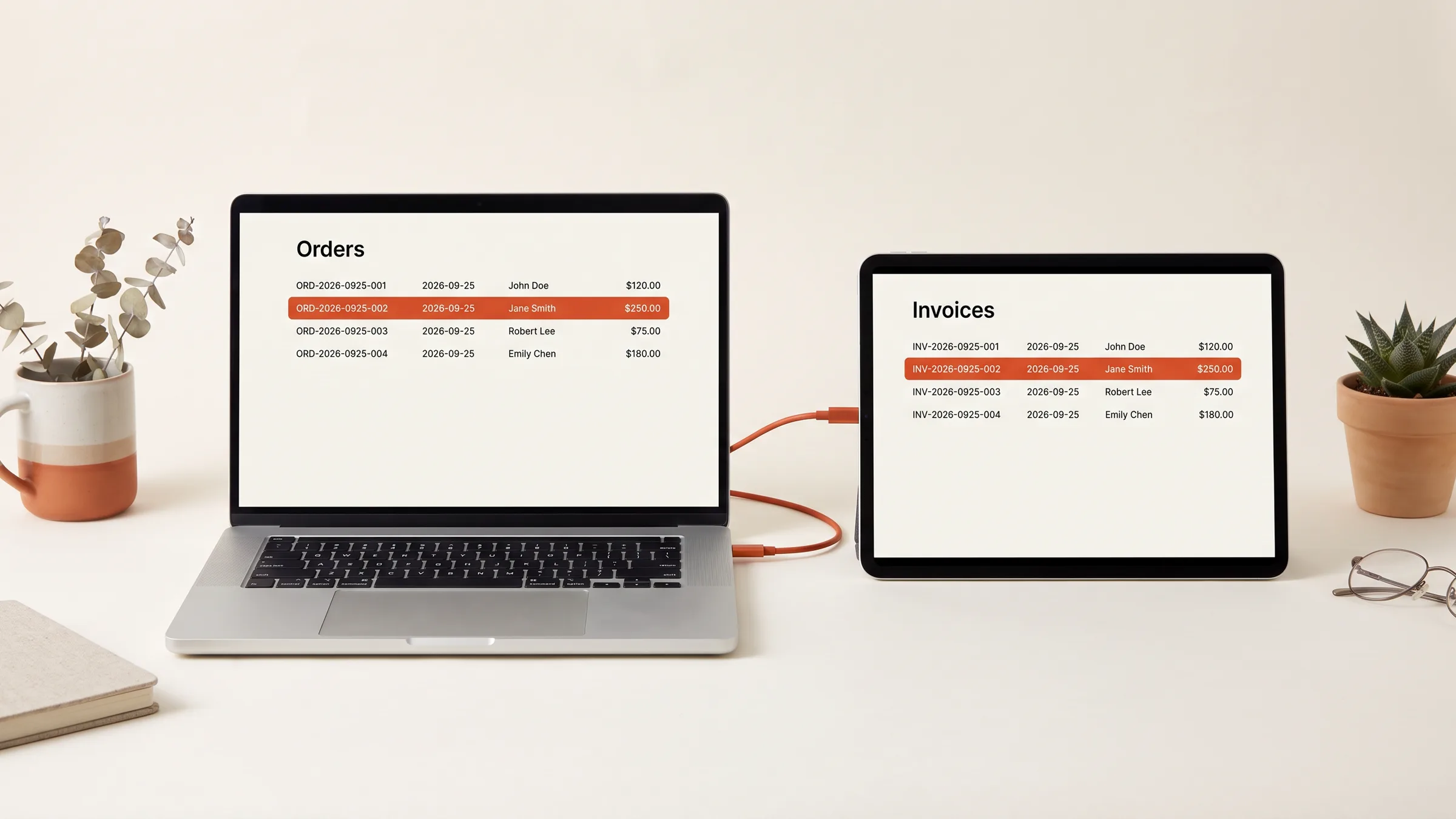
Every team that uses Airtable as its operational backbone eventually runs into the same problem: nobody knows when something changed. A product manager updates a launch date. A warehouse lead marks a shipment as delayed. A sales rep moves a deal to "Closed Won." The data changes in Airtable, but the people who need to act on that change have no idea it happened -- because they were not staring at the base at that exact moment.
The default fix is to tell people to check Airtable more often. That does not work. The actual fix is to push relevant changes to where your team already lives: Slack.
This guide walks through exactly how to build Make.com scenarios that watch Airtable for new and updated records, format the data into useful Slack messages, and handle the edge cases that break most first attempts -- like duplicate notifications, missing fields, and rate limits.
Why Make.com for This Integration
Before diving in, a quick note on tooling. You can connect Airtable to Slack using Zapier, n8n, or native Airtable automations. Here is why Make.com is particularly well-suited for this specific use case:
- Airtable's native automations can send Slack messages, but they are limited to simple text. You cannot build rich Block Kit messages, you cannot conditionally route to different channels, and you cannot include data from linked records without additional scripting.
- Zapier works but gets expensive fast. Every Airtable record change that triggers a Slack message costs one task. If your team updates 200 records a day, that is 6,000 tasks a month -- well past Zapier's Starter plan limits.
- Make.com charges by operations, and its Airtable module can process batches of records in a single execution. A scenario that checks for 50 updated records and sends 50 Slack messages uses 51 operations (1 Airtable search + 50 Slack sends), which is far more economical than 50 individual Zapier runs.
- Make.com's router module lets you send different messages to different Slack channels based on record data -- without duplicating the entire scenario.
The Architecture
Here is what you are building:
Airtable Base
  |
  |-- Make.com polls for new/updated records (every 5 min)
  |
Make.com Scenario
  |
  |-- Filter: Only records with meaningful changes
  |-- Router: Route to different Slack channels by type
  |-- Formatter: Build rich Slack messages with Block Kit
  |
Slack
  |-- #operations (inventory/shipping updates)
  |-- #sales (deal stage changes)
  |-- #product (launch date and spec updates)
The scenario runs on a schedule, checks Airtable for records modified since the last run, formats the changes into readable Slack messages, and routes them to the right channel. No webhook setup required, no Airtable scripting, no custom code.
Step 1: Prepare Your Airtable Base
Make.com's Airtable module can detect new records automatically, but detecting updated records requires a small structural addition to your base.
Add a "Last Modified" Field
If your table does not already have one, add a Last Modified field (Airtable's built-in field type). Configure it to update when any field in the record changes, or limit it to specific fields if you only want to track certain changes.
This field is what Make.com will use to identify records that have changed since the last poll.
Add a "Change Notes" Formula (Optional but Recommended)
For richer Slack notifications, add a formula field called Change Summary that concatenates the key fields you want surfaced in Slack. For example:
{Name} & " | Status: " & {Status} & " | Owner: " & {Assigned To}
This gives Make.com a single field to pull into the Slack message without needing to reference a dozen individual fields.
Consider a "Notification Sent" Checkbox
If you want to prevent duplicate notifications (more on this later), add a checkbox field called Notification Sent. Your Make.com scenario will check this field before sending and mark it after a successful Slack post.
Step 2: Create the Make.com Scenario
Connect Airtable
- In Make.com, create a new scenario
- Add the Airtable > Search Records module as your first step
- Connect your Airtable account (you will need an Airtable personal access token with
data.records:readanddata.records:writescopes) - Select your base and table
- Set up the filter formula to find recently modified records:
AND(
  IS_AFTER({Last Modified}, DATEADD(NOW(), -10, 'minutes')),
  {Notification Sent} = FALSE()
)
This formula pulls records modified in the last 10 minutes that have not already triggered a notification. The 10-minute window provides overlap with the 5-minute schedule to prevent records from slipping through the cracks during brief Make.com delays.
Set the Schedule
Configure the scenario to run every 5 minutes. This gives you near-real-time notifications without burning through your Make.com operations quota. For most teams, a 5-minute delay between Airtable change and Slack notification is perfectly acceptable.
If you need true real-time notifications (under 30 seconds), you will need to use Airtable's webhook feature (available on Pro and Enterprise plans) as the trigger instead. Make.com supports incoming webhooks as a trigger module, and you can configure Airtable automations to POST to that webhook URL whenever a record changes.
Step 3: Build the Slack Message
This is where most tutorials stop at "send a message to Slack" with a plain text string. That is fine for a proof of concept, but it falls apart in practice because plain text messages are hard to scan in a busy channel.
Use Slack Block Kit for Readable Messages
Make.com's Slack module supports Block Kit JSON, which lets you build structured messages with headers, dividers, fields, and action buttons.
Here is a Block Kit template for an Airtable record update notification:
{
  "blocks": [
    {
      "type": "header",
      "text": {
        "type": "plain_text",
        "text": "Record Updated: {{name}}"
      }
    },
    {
      "type": "section",
      "fields": [
        {
          "type": "mrkdwn",
          "text": "*Status:*\n{{status}}"
        },
        {
          "type": "mrkdwn",
          "text": "*Assigned To:*\n{{assignee}}"
        },
        {
          "type": "mrkdwn",
          "text": "*Priority:*\n{{priority}}"
        },
        {
          "type": "mrkdwn",
          "text": "*Last Modified:*\n{{last_modified}}"
        }
      ]
    },
    {
      "type": "actions",
      "elements": [
        {
          "type": "button",
          "text": {
            "type": "plain_text",
            "text": "Open in Airtable"
          },
          "url": "https://airtable.com/appXXXXXX/tblXXXXXX/viwXXXXXX/{{record_id}}"
        }
      ]
    }
  ]
}
In Make.com, replace the {{placeholders}} with mapped values from the Airtable module output. The result is a clean, scannable Slack message with a direct link back to the record.
Construct the Airtable Record URL
Airtable's record URLs follow this pattern:
https://airtable.com/{baseId}/{tableId}/{viewId}/{recordId}
You can find your base ID, table ID, and view ID in the Airtable URL when you have the base open. The record ID comes from Make.com's Airtable module output (every record includes an id field). Concatenate these in Make.com to generate a clickable link.
Step 4: Route Messages to the Right Channel
Not every Airtable update should go to the same Slack channel. A shipping delay needs to hit #operations. A deal closing needs to hit #sales. A product spec change needs to hit #product.
Use Make.com's Router Module
Add a Router module after the Airtable search. Each route gets a filter condition and a separate Slack module:
Route 1: Operations Channel
- Filter:
Table Nameequals "Inventory" ORStatuscontains "Delayed" ORStatuscontains "Backorder" - Slack channel:
#operations
Route 2: Sales Channel
- Filter:
Table Nameequals "Deals" ORStagecontains "Closed" - Slack channel:
#sales
Route 3: Product Channel
- Filter:
Table Nameequals "Products" OR fieldLaunch Datehas changed - Slack channel:
#product
Route 4: Catch-All
- No filter (fallback)
- Slack channel:
#general-updates
Each route has its own Slack message template, so the format and content can be tailored to the audience. Operations people want to see SKU and quantity. Sales people want to see deal value and contact name. Product people want to see the spec that changed and who changed it.
Step 5: Mark Records as Notified
After successfully posting to Slack, add an Airtable > Update a Record module to set the Notification Sent checkbox to true. This prevents the same record from triggering duplicate notifications on the next polling cycle.
Wire this as the final step after the Slack module in each route. If the Slack post fails, the record will not get marked, and the scenario will retry it on the next run -- giving you automatic retry behavior for free.
Resetting the Checkbox
If a record gets updated again after being notified, you want a new notification. Add an Airtable automation (inside Airtable itself, not in Make.com) that watches for field changes and unchecks Notification Sent whenever a tracked field is modified. This creates a self-resetting loop:
- Record changes in Airtable -->
Notification Sentunchecked automatically - Make.com detects record with
Notification Sent = falseand recentLast Modified - Make.com sends Slack notification
- Make.com checks the
Notification Sentbox - Back to step 1 on next change
Handling Edge Cases
Duplicate Notifications
The checkbox approach above handles most duplicates, but there is a race condition: if Make.com's scenario takes longer than the polling interval to complete (e.g., processing a large batch of records), the next scheduled run might pick up the same records before they are marked as notified.
Fix this by adding a secondary filter in the Airtable search formula:
AND(
  IS_AFTER({Last Modified}, DATEADD(NOW(), -10, 'minutes')),
  {Notification Sent} = FALSE(),
  {Last Modified} != {Notification Last Sent At}
)
Add a Notification Last Sent At date/time field and update it with the current timestamp alongside the checkbox. The extra condition ensures even if the checkbox toggle has not propagated yet, the timestamp comparison catches the duplicate.
Empty or Missing Fields
If a record has blank fields, your Slack message will display empty values, which looks broken. Use Make.com's ifempty function to provide fallback text:
{{ifempty(status, "No status set")}}
{{ifempty(assignee, "Unassigned")}}
{{ifempty(priority, "Not prioritized")}}
This keeps your Slack messages clean even when Airtable records are partially filled out.
Rate Limits
Both Airtable and Slack have API rate limits that matter at scale:
- Airtable: 5 requests per second per base. If your Make.com scenario triggers a large batch update (marking 100 records as notified), you will hit this limit. Use Make.com's built-in rate limiting by setting the Airtable module's Execution rate to 4 operations per second.
- Slack: 1 message per second per channel for bot users. If you are sending 50 notifications in a batch, add a 1-second delay between Slack posts using Make.com's Sleep module, or use Slack's
chat.postMessageAPI with theunfurl_links: falseparameter to reduce processing overhead.
For high-volume bases (500+ record changes per day), consider batching updates into a single digest message instead of individual notifications. Send one Slack message per channel every 15 minutes summarizing all changes, rather than flooding the channel with individual posts.
Linked Record Data
If your Airtable records contain linked record fields (e.g., a "Project" field that links to a Projects table), the Make.com Airtable module only returns the linked record IDs -- not the actual data from those records. To include linked record data in your Slack message, you need a secondary Airtable lookup:
- After the initial Search Records module, add a Airtable > Get a Record module
- Use the linked record ID from the first module's output
- Map the fields from the linked record into your Slack message template
This adds one operation per linked record lookup, so factor that into your Make.com operations budget.
Advanced: Multi-Table Monitoring
If you need to monitor changes across multiple tables in the same Airtable base, you have two options:
Option A: Separate Scenarios Per Table
Create one Make.com scenario per Airtable table. Each scenario has its own schedule, filters, and Slack routing. This is simpler to build and debug, but harder to maintain if you have more than 3-4 tables.
Option B: Single Scenario With Multiple Airtable Modules
Build one scenario with multiple Airtable Search modules (one per table), followed by an Array Aggregator that combines the results into a single stream. Then apply your router and Slack modules to the combined stream.
This approach is more efficient (one scenario execution covers all tables) but requires careful data normalization since each table may have different field names and structures.
For most teams, Option A is the right starting point. Switch to Option B when the number of scenarios becomes unwieldy or when you need cross-table logic (e.g., "notify #operations when an order record changes AND the linked product record has low inventory").
Testing Your Scenario
Before setting the scenario to run on a schedule, test it manually:
- Create a test record in Airtable with the
Notification Sentcheckbox unchecked - Run the scenario once using Make.com's "Run Once" button
- Verify the Slack message appears in the correct channel with proper formatting
- Verify the
Notification Sentcheckbox got checked in Airtable - Update the test record (change a tracked field)
- Confirm the checkbox was automatically unchecked by your Airtable automation
- Run the scenario again and verify a second notification appears
Common issues during testing:
- No records found: Your filter formula timing window may be too narrow. Widen it temporarily for testing.
- Slack message is empty: Check that your field mappings point to the correct Airtable module output. Make.com's module outputs are numbered, so if you added or removed modules, the references may have shifted.
- Duplicate notifications: Your
Notification Sentcheckbox is not being set correctly, or the Airtable automation that resets it is firing too aggressively.
What This Looks Like in Practice
Once deployed, here is the daily experience for your team:
- An operations lead updates a shipping ETA in Airtable. Within 5 minutes, the #operations Slack channel gets a formatted message: "Record Updated: Order #4521 | Status: Delayed | New ETA: April 2 | Open in Airtable [link]."
- A product manager changes a launch date. The #product channel surfaces it with the old and new dates.
- A sales rep moves a deal to "Closed Won." The #sales channel gets a notification with deal value and customer name, and the team reacts with emoji -- because they actually saw it, instead of finding out three days later during a standup.
The total Make.com cost for a team processing 200 Airtable changes per day across three tables: roughly 6,200 operations per month (200 changes x 31 days x 1 search + 1 Slack post + 1 update per change). That fits comfortably within Make.com's Core plan at $10.59/month for 10,000 operations.
For a 30-minute setup and $10/month, you get real-time operational visibility that eliminates the "I didn't know that changed" problem entirely. No more missed updates, no more stale context in standups, and no more manually checking Airtable to see what happened overnight.
Is your half-built automation a six-week finish?
Take the free Finish Score. Ten questions, two minutes, and a report on what to settle before you build.
Take the Finish ScoreWant help mapping what to automate first?
Book a short call. No pitch deck, just a working session on where your operations leak time and money and what to fix first.
Book a callRelated Articles
Platform Integration
Shopify Multi-Location Inventory Sync: Stop Overselling
Stop overselling across Shopify locations. Build a real-time multi-location inventory sync system with free n8n templates, GraphQL examples, and reconciliation.
Jun 16, 2026 · 17 min read
Platform Integration
Advanced Klaviyo Flows with n8n: Go Beyond Native Automations
Trigger Klaviyo emails from external data Shopify can't see. Step-by-step n8n workflows for cross-platform segmentation, custom events, and advanced flow logic.
Mar 23, 2026 · 17 min read
Platform Integration
Shopify to Google Sheets: Free Real-Time Dashboard (n8n Guide)
Build a live Shopify dashboard in Google Sheets using n8n webhooks — no paid apps, works on any plan. Step-by-step setup with ready-to-copy workflow templates.
Mar 23, 2026 · 19 min read
Platform Integration
How to Build a Shopify Subscription Management System
Reduce subscriber churn with automated dunning, win-back flows, and proactive retention. A technical guide to subscription automation for Shopify stores.
Mar 23, 2026 · 18 min read
Platform Integration
How to Connect Shopify to QuickBooks Automatically
A practical guide to syncing Shopify sales, refunds, fees, and payouts to QuickBooks Online. Covers native connectors, A2X, Synder, and custom workflows.
Mar 23, 2026 · 14 min read
Platform Integration
How to Automate Shopify Order Fulfillment End to End
Stop spending 3+ hours a day on manual fulfillment. Learn how to automate Shopify order fulfillment with routing, tracking, and fraud checks using n8n.
Mar 23, 2026 · 15 min read