Platform Integration
Shopify to Google Sheets: Free Real-Time Dashboard (n8n Guide)
Build a live Shopify dashboard in Google Sheets using n8n webhooks — no paid apps, works on any plan. Step-by-step setup with ready-to-copy workflow templates.
David Yu · March 23, 2026 · 19 min read
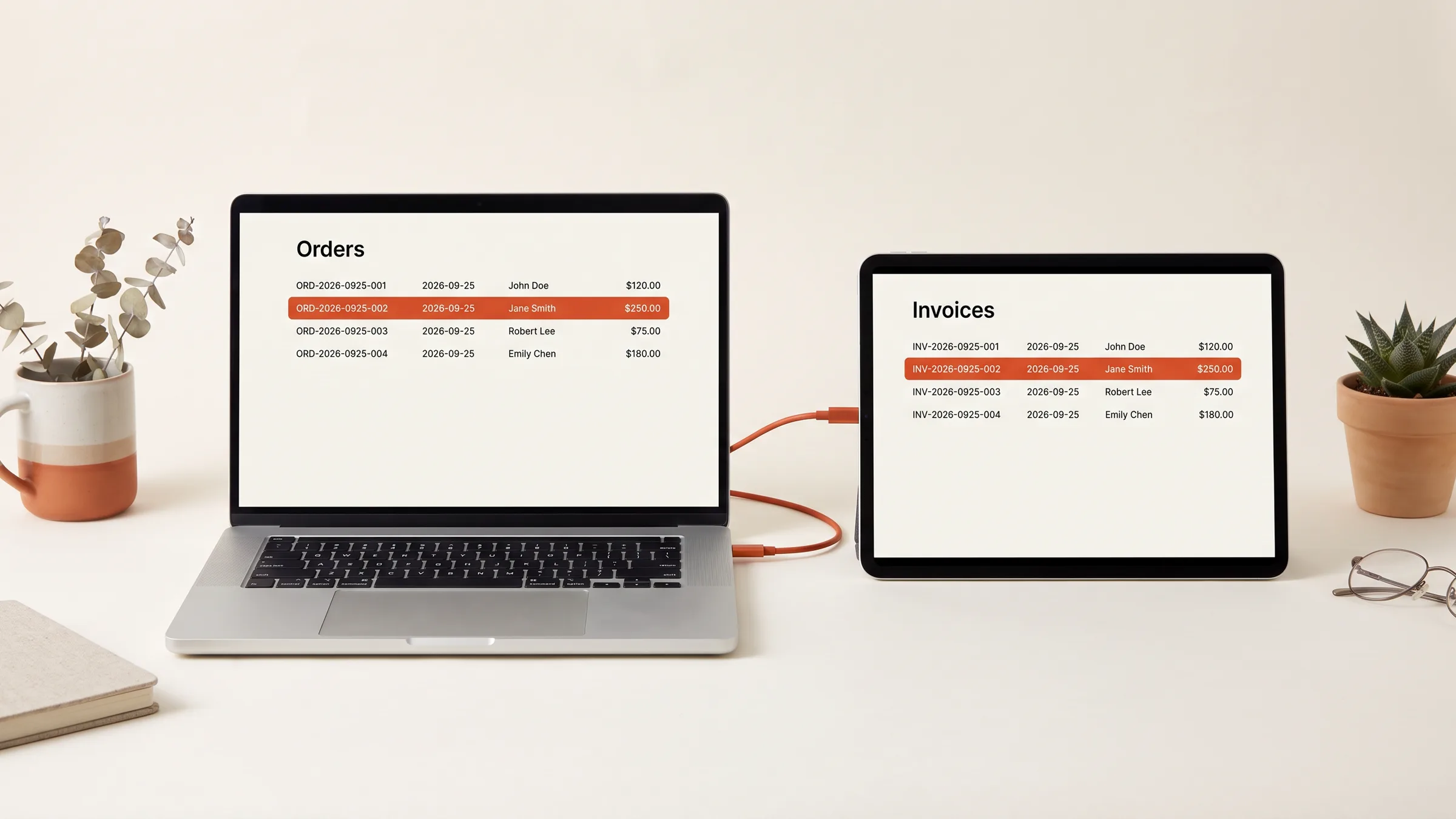
Picture this: it is 9 AM on Monday. You open your Shopify admin, click Analytics, export last week's orders as a CSV, open Google Sheets, paste the data in, reformat the date columns, add a VLOOKUP to pull in product costs from another tab, rebuild the pivot table that broke when you added new rows, and finally share the link with your ops lead. An hour gone. And the data is already stale by the time anyone reads it.
Now multiply that by every report your team depends on -- daily sales summaries, inventory snapshots, order status trackers, customer cohort breakdowns, ad spend vs. revenue comparisons. Each one is a manual export, a manual paste, a manual cleanup. Each one drifts further from reality the moment you close the tab.
The irony is that Google Sheets is genuinely excellent for ecommerce reporting. It is flexible, shareable, familiar, and free. The problem is not the tool -- it is the manual pipeline feeding data into it. Fix that pipeline, and Sheets becomes a real-time dashboard that rivals paid BI tools costing $200 or more per month.
This guide walks through how to automate Shopify-to-Google Sheets reporting using n8n -- webhook-driven for real-time updates, scheduled syncs for daily summaries, and Google Sheets formulas that turn raw data into visual dashboards. No paid third-party apps. No Zapier subscription. No Coupler.io or Coefficient fees.
Why Ecommerce Teams Still Live in Google Sheets
Before building the automation, it is worth understanding why Sheets remains the reporting tool of choice for so many ecommerce teams -- even teams that have access to Shopify Analytics, Looker Studio, or dedicated BI platforms.
Familiarity. Everyone on your team already knows how to use a spreadsheet. Your ops lead, your marketing manager, your bookkeeper, your warehouse supervisor -- they all know how to filter, sort, and build a basic chart. Try asking your warehouse team to build a custom Looker Studio report. It will not happen.
Flexibility. Sheets lets you combine data from multiple sources in one view. Shopify orders next to ad spend from Meta, next to COGS from your supplier spreadsheet, next to headcount from your HR tool. No rigid schema, no predefined dimensions. Just rows and columns you can reshape however you want.
Sharing and permissions. One link, view-only or edit access, real-time collaboration. No licenses, no seats, no per-user pricing. Your entire team, your accountant, and your 3PL can all look at the same live data.
Cost. Free. For a bootstrapped DTC brand doing $1M a year, the difference between $0/month and $200/month for a BI tool is real money -- especially when the spreadsheet does 90% of what the BI tool does.
The problem has never been Google Sheets itself. The problem is getting data into it without a human in the loop.
The Real Cost of Manual Shopify Exports
Manual data exports seem harmless until you quantify the damage.
Time waste. A typical Shopify-to-Sheets export takes 15-30 minutes per report. If you maintain five reports updated weekly, that is 2-3 hours per week -- 120+ hours per year -- spent on copy-paste work that a machine can do in seconds.
Stale data. By the time a manual export is cleaned up and pasted into Sheets, the data is already hours old. For fast-moving metrics like inventory levels or daily sales velocity, stale data leads to bad decisions. You reorder a SKU that sold out two hours ago. You pause an ad campaign based on yesterday's ROAS when today's numbers already recovered.
Human error. Every manual step is a chance for mistakes. A missed filter on the export. A column pasted into the wrong position. A date format that Sheets interprets differently than Shopify. A row accidentally deleted during cleanup. These errors are invisible until someone makes a decision based on wrong numbers.
Broken handoffs. When the person who maintains the spreadsheet goes on vacation, gets sick, or quits, the reporting pipeline stops. Institutional knowledge about which filters to apply, which columns to reformat, and which tabs to update lives in one person's head.
Automation eliminates all four problems. The data flows continuously, arrives in seconds, follows the same logic every time, and does not depend on any individual.
Two Approaches: Webhooks vs. Scheduled Syncs
There are two fundamentally different ways to get Shopify data into Google Sheets automatically. Most production setups use both.
Webhook-Driven (Real-Time)
Shopify fires a webhook every time a relevant event occurs -- an order is placed, a fulfillment is created, an inventory level changes. Your automation catches that webhook, transforms the data, and appends a row to Google Sheets within seconds.
Best for: Order logs, fulfillment tracking, inventory alerts, customer activity feeds -- anything where you need to see events as they happen.
Trade-off: Webhooks give you individual events, not aggregated summaries. You get one row per order, not a daily sales total. The aggregation happens inside Sheets using formulas.
Scheduled Sync (Batch)
A scheduled workflow runs at a fixed interval -- every hour, every morning at 6 AM, every Monday at midnight -- pulls data from the Shopify API, and writes it to Google Sheets in one batch.
Best for: Daily sales summaries, weekly inventory snapshots, monthly cohort reports, any metric where you want a clean point-in-time snapshot rather than a streaming log.
Trade-off: Data is only as fresh as the last sync. A daily sync means your morning dashboard reflects yesterday's data, not this moment's data.
The sweet spot for most stores is webhooks for operational data (orders, fulfillments, stock changes) and scheduled syncs for summary reports (daily revenue, weekly trends, monthly KPIs).
Setting Up the n8n Infrastructure
Before building individual workflows, you need n8n connected to both Shopify and Google Sheets.
Shopify API Credentials
Create a custom app in your Shopify admin under Settings → Apps and sales channels → Develop apps. Grant it the following API scopes:
read_orders-- Access order dataread_products-- Access product and variant dataread_inventory-- Access inventory levelsread_customers-- Access customer data (for cohort reports)read_fulfillments-- Access fulfillment and tracking data
Save the Admin API access token. You will use this in n8n's Shopify credential configuration.
Google Sheets API Credentials
In n8n, add a Google Sheets credential using OAuth2. This requires a Google Cloud project with the Sheets API enabled. n8n's documentation walks through this step by step -- you will end up with a client ID and client secret that authorize n8n to read and write your spreadsheets.
Tip: Create a dedicated Google account for your automation (e.g., automation@yourbrand.com). Share your reporting spreadsheets with this account. This prevents workflows from breaking if a team member's personal Google account loses access or gets deactivated.
Spreadsheet Structure
Create a Google Sheets workbook with separate tabs for each data feed:
| Tab Name | Purpose | Data Source |
|---|---|---|
raw_orders | Every order as it comes in | Webhook (real-time) |
raw_fulfillments | Fulfillment events with tracking | Webhook (real-time) |
daily_sales | One row per day with aggregated metrics | Scheduled (daily) |
inventory_snapshot | Current stock levels by SKU | Scheduled (hourly) |
dashboard | Charts and summaries (formulas only) | Calculated from other tabs |
The first four tabs receive data from n8n. The dashboard tab is purely formula-driven -- it reads from the other tabs and presents the numbers visually. This separation keeps your automation simple (just append rows) while your reporting layer can be as sophisticated as you want.
Workflow 1: Real-Time Order Log via Webhooks
This is the foundation. Every paid order appears in your Google Sheet within seconds, giving you a live feed of sales activity.
n8n Workflow Architecture
Shopify Webhook (orders/paid)
  → Parse order payload
  → Extract relevant fields
  → Format for spreadsheet
  → Append row to Google Sheets "raw_orders" tab
Step 1: Create the Webhook Trigger
In n8n, add a Webhook node as the trigger. Copy the webhook URL and register it in Shopify:
{
  "webhook": {
    "topic": "orders/paid",
    "address": "https://your-n8n-instance.com/webhook/shopify-orders",
    "format": "json"
  }
}
You can register this via the Shopify Admin API or through a custom app's webhook subscriptions page.
Step 2: Transform the Data
Shopify's order webhook payload is massive -- hundreds of fields per order. You only need a subset for reporting. Add a Function node to extract and flatten the fields you care about:
const order = $input.item.json;

// Calculate total items and product breakdown
const totalItems = order.line_items.reduce((sum, item) => sum + item.quantity, 0);
const productTitles = order.line_items.map(item => item.title).join(', ');

// Determine order source
const source = order.source_name === 'web' ? 'Online Store' :
               order.source_name === 'pos' ? 'POS' :
               order.source_name || 'Other';

return {
  json: {
    order_id: order.name,                          // "#1042"
    date: order.created_at.split('T')[0],          // "2026-03-23"
    time: order.created_at.split('T')[1].slice(0,5), // "14:30"
    customer_email: order.email || '',
    customer_name: `${order.customer?.first_name || ''} ${order.customer?.last_name || ''}`.trim(),
    subtotal: parseFloat(order.subtotal_price),
    shipping: parseFloat(order.total_shipping_price_set?.shop_money?.amount || 0),
    tax: parseFloat(order.total_tax),
    discounts: parseFloat(order.total_discounts),
    total: parseFloat(order.total_price),
    item_count: totalItems,
    products: productTitles,
    source: source,
    shipping_city: order.shipping_address?.city || '',
    shipping_state: order.shipping_address?.province_code || '',
    shipping_country: order.shipping_address?.country_code || '',
    discount_codes: order.discount_codes?.map(d => d.code).join(', ') || '',
    financial_status: order.financial_status,
    fulfillment_status: order.fulfillment_status || 'unfulfilled'
  }
};
Step 3: Append to Google Sheets
Add a Google Sheets node configured to append a row to your raw_orders tab. Map each field from the Function node to the corresponding column header.
Set the column headers in your spreadsheet first:
Order ID | Date | Time | Email | Customer | Subtotal | Shipping |
Tax | Discounts | Total | Items | Products | Source | City |
State | Country | Discount Codes | Payment Status | Fulfillment Status
n8n's Google Sheets node will match field names to column headers automatically. Each new order adds a row at the bottom of the sheet.
Step 4: Add Fulfillment Tracking
Create a second webhook workflow for the orders/fulfilled topic. This populates the raw_fulfillments tab with tracking data:
const order = $input.item.json;

const fulfillments = order.fulfillments?.map(f => ({
  order_id: order.name,
  fulfilled_at: f.created_at?.split('T')[0] || '',
  tracking_company: f.tracking_company || '',
  tracking_number: f.tracking_number || '',
  tracking_url: f.tracking_url || '',
  status: f.shipment_status || f.status || '',
  line_items: f.line_items?.map(li => li.title).join(', ') || ''
})) || [];

return fulfillments.map(f => ({ json: f }));
Now you have two live data feeds -- every order as it's paid, and every fulfillment as it ships.
Workflow 2: Daily Sales Summary via Scheduled Sync
The real-time order log is great for operational visibility, but leadership usually wants a clean summary: "How did we do yesterday? How does this week compare to last week?"
This workflow runs once per day and writes a single summary row.
n8n Workflow Architecture
Cron Trigger (daily at 6:00 AM)
  → Query Shopify Orders API for yesterday's orders
  → Aggregate: total revenue, order count, avg order value
  → Calculate: units sold, top products, refund rate
  → Append summary row to "daily_sales" tab
The Shopify API Query
Use Shopify's REST Admin API to pull orders for a specific date range:
// Calculate yesterday's date range in UTC
const yesterday = new Date();
yesterday.setDate(yesterday.getDate() - 1);
const startDate = yesterday.toISOString().split('T')[0] + 'T00:00:00-00:00';
const endDate = yesterday.toISOString().split('T')[0] + 'T23:59:59-00:00';

// Fetch all paid orders for yesterday
const response = await fetch(
  `https://${shopDomain}/admin/api/2024-01/orders.json?` +
  `created_at_min=${startDate}&created_at_max=${endDate}` +
  `&financial_status=paid&status=any&limit=250`,
  {
    headers: { 'X-Shopify-Access-Token': accessToken }
  }
);

const orders = (await response.json()).orders;
Important: Shopify's API returns a maximum of 250 orders per request. If your store processes more than 250 orders per day, you need to implement cursor-based pagination using the Link header. For most stores under $10M in annual revenue, 250 is sufficient for a daily pull.
Aggregation Logic
const orders = $input.item.json.orders;

const totalRevenue = orders.reduce((sum, o) => sum + parseFloat(o.total_price), 0);
const totalOrders = orders.length;
const avgOrderValue = totalOrders > 0 ? totalRevenue / totalOrders : 0;
const totalUnits = orders.reduce((sum, o) =>
  sum + o.line_items.reduce((s, li) => s + li.quantity, 0), 0
);
const totalDiscount = orders.reduce((sum, o) => sum + parseFloat(o.total_discounts), 0);
const totalShipping = orders.reduce((sum, o) =>
  sum + parseFloat(o.total_shipping_price_set?.shop_money?.amount || 0), 0
);

// Count orders by source
const sources = {};
orders.forEach(o => {
  const src = o.source_name === 'web' ? 'Online' : o.source_name || 'Other';
  sources[src] = (sources[src] || 0) + 1;
});

// Top 3 products by units sold
const productCounts = {};
orders.forEach(o => {
  o.line_items.forEach(li => {
    productCounts[li.title] = (productCounts[li.title] || 0) + li.quantity;
  });
});
const topProducts = Object.entries(productCounts)
  .sort((a, b) => b[1] - a[1])
  .slice(0, 3)
  .map(([name, qty]) => `${name} (${qty})`)
  .join(', ');

return {
  json: {
    date: yesterday.toISOString().split('T')[0],
    revenue: totalRevenue.toFixed(2),
    orders: totalOrders,
    avg_order_value: avgOrderValue.toFixed(2),
    units_sold: totalUnits,
    total_discounts: totalDiscount.toFixed(2),
    total_shipping: totalShipping.toFixed(2),
    top_products: topProducts,
    source_breakdown: JSON.stringify(sources),
    day_of_week: ['Sun','Mon','Tue','Wed','Thu','Fri','Sat'][yesterday.getDay()]
  }
};
Append this to the daily_sales tab. Over time, you build a complete daily performance history that is trivial to chart and analyze.
Workflow 3: Hourly Inventory Snapshots
Inventory is the metric most likely to cause real damage when it is stale. An out-of-stock SKU that still shows as available means overselling, cancellations, and angry customers. An overstocked SKU that no one notices ties up cash for months.
n8n Workflow Architecture
Cron Trigger (every hour)
  → Fetch all inventory levels from Shopify
  → Join with product/variant data for context
  → Write to "inventory_snapshot" tab (overwrite, not append)
Unlike the order log, the inventory snapshot overwrites the previous data rather than appending. You want current stock levels, not a history of every change. If you want historical tracking, append to a separate inventory_history tab daily.
// Fetch inventory levels for your primary location
const response = await fetch(
  `https://${shopDomain}/admin/api/2024-01/inventory_levels.json?location_ids=${locationId}&limit=250`,
  {
    headers: { 'X-Shopify-Access-Token': accessToken }
  }
);

const levels = (await response.json()).inventory_levels;

// Enrich with product details (requires a separate API call or cached lookup)
const enriched = levels.map(level => ({
  sku: variantLookup[level.inventory_item_id]?.sku || '',
  product_title: variantLookup[level.inventory_item_id]?.product_title || '',
  variant_title: variantLookup[level.inventory_item_id]?.variant_title || '',
  available: level.available,
  location: locationName,
  last_updated: new Date().toISOString(),
  status: level.available <= 0 ? 'OUT OF STOCK' :
          level.available <= 10 ? 'LOW STOCK' : 'IN STOCK'
}));
In the Google Sheets node, set the operation to "Update" with "Clear sheet first" enabled, so each sync replaces the previous snapshot entirely.
The status column is especially useful. In your dashboard tab, you can use COUNTIF to show how many SKUs are out of stock or running low at any given moment.
Building the Dashboard Tab
This is where Google Sheets shines. The dashboard tab contains zero raw data -- only formulas that reference the other tabs. When the underlying data updates, the dashboard updates automatically.
Key Metrics to Display
Here are the formulas for the most useful ecommerce KPIs, assuming your daily_sales tab has columns A (date) through J (day_of_week):
Today's revenue (from the real-time order log):
=SUMIFS(raw_orders!F:F, raw_orders!B:B, TEXT(TODAY(), "yyyy-mm-dd"))
Yesterday's revenue (from the daily summary):
=INDEX(daily_sales!B:B, MATCH(TODAY()-1, daily_sales!A:A, 0))
Last 7 days revenue trend (for a sparkline chart):
=SPARKLINE(FILTER(daily_sales!B:B, daily_sales!A:A >= TODAY()-7))
Average order value -- trailing 30 days:
=AVERAGEIFS(daily_sales!D:D, daily_sales!A:A, ">="&TODAY()-30)
Current out-of-stock SKU count:
=COUNTIF(inventory_snapshot!G:G, "OUT OF STOCK")
Orders by source today (pie chart data):
=COUNTIFS(raw_orders!B:B, TEXT(TODAY(), "yyyy-mm-dd"), raw_orders!M:M, "Online Store")
Conditional Formatting
Apply conditional formatting rules to make problems visible at a glance:
- Revenue cells: Green if above the 30-day average, red if below.
- Inventory status: Red background for "OUT OF STOCK", yellow for "LOW STOCK", green for "IN STOCK".
- Fulfillment status: Red for orders unfulfilled after 24 hours.
Charts
Google Sheets' built-in charts are enough for most ecommerce dashboards:
- Line chart on
daily_salesrevenue column -- shows the revenue trend over time - Bar chart comparing revenue by day of week -- reveals your strongest and weakest sales days
- Pie chart on order sources -- shows the mix between online store, POS, draft orders, and API orders
- Horizontal bar chart on inventory -- sorted by available quantity, so low-stock SKUs surface immediately
Place these charts on the dashboard tab, referencing data from the summary and snapshot tabs. They update automatically every time n8n pushes new data.
Handling Edge Cases
Duplicate Webhooks
Shopify webhooks can fire more than once for the same event. If you do not handle duplicates, your order log will contain duplicate rows that inflate revenue numbers and order counts.
Add a deduplication step before appending to Google Sheets:
// Check if this order ID already exists in the sheet
const existingOrders = await getSheetColumn('raw_orders', 'A'); // Order ID column
const currentOrderId = $input.item.json.order_id;

if (existingOrders.includes(currentOrderId)) {
  return []; // Skip - already logged
}

return $input.item;
Alternatively, use n8n's built-in "Remove Duplicates" node, or add a dedup check using a simple key-value store (Redis, or even a dedicated Google Sheet tab that serves as a lookup table).
API Rate Limits
Shopify's REST Admin API allows 40 requests per app per store, replenished at 2 requests per second. For the daily sales sync and inventory snapshot, this is rarely a problem. But if you have hundreds of SKUs and need to enrich inventory data with product details, you may need to batch your requests.
In n8n, use the Split In Batches node to process 5-10 items at a time with a 1-second delay between batches. This keeps you well under the rate limit.
Timezone Mismatches
Shopify stores operate in a configured timezone, but the API returns timestamps in UTC. Your Google Sheets dashboard likely needs to display dates in your local timezone. Handle the conversion in your n8n Function node:
// Convert UTC timestamp to store timezone
const utcDate = new Date(order.created_at);
const localDate = utcDate.toLocaleString('en-US', {
  timeZone: 'America/New_York' // Replace with your store's timezone
});
If you skip this step, you will see orders from late evening appearing under the next day's date, which throws off daily totals.
Google Sheets Row Limits
Google Sheets supports up to 10 million cells per spreadsheet. A raw order log with 19 columns will hit this limit at roughly 526,000 rows -- about two years of data for a store processing 700 orders per day. For stores at that volume, archive older data quarterly by moving it to a separate "archive" spreadsheet and keeping only the most recent 3-6 months in your active workbook.
For most stores processing fewer than 200 orders per day, you will not hit this limit for years.
Sharing and Permissions
One of the biggest advantages of Google Sheets dashboards is access control. Set up sharing based on role:
| Role | Access Level | What They See |
|---|---|---|
| Founder / CEO | Edit access to dashboard tab | Full dashboard with all metrics |
| Ops Manager | Edit access to all tabs | Raw data + dashboard for troubleshooting |
| Marketing Lead | View-only on dashboard and daily_sales | Revenue trends, source breakdown, discount usage |
| 3PL Partner | View-only on inventory_snapshot | Current stock levels at their location |
| Bookkeeper | View-only on raw_orders and daily_sales | Transaction-level and summary data for reconciliation |
Use Google Sheets' "Protect sheets and ranges" feature to prevent accidental edits to formula-driven tabs. Lock the dashboard tab so only the automation account can modify it.
For external partners (3PLs, accountants), publish specific tabs as standalone links rather than sharing the entire workbook. This keeps your internal data compartmentalized.
When to Graduate from Google Sheets
Google Sheets is not forever. Here are the signals that you have outgrown it:
- Your spreadsheet takes more than 5 seconds to load. Too many rows, too many formulas, too many cross-tab references. Performance degrades before you hit the technical row limit.
- You need joins across more than 3-4 data sources. Sheets can handle VLOOKUP across tabs, but once you are pulling from Shopify, your ad platforms, your ERP, your 3PL, and your CRM, a proper data warehouse (BigQuery, Snowflake) with a BI layer (Looker Studio, Metabase) is more maintainable.
- Multiple people need different views of the same data. Sheets is one view. If your marketing team wants a completely different dashboard layout than your ops team, you are duplicating data and maintaining two spreadsheets. A BI tool lets you create multiple dashboards from the same underlying data.
- You need historical trend analysis beyond 12 months. Sheets gets unwieldy with very large datasets. A database is better for long-term trend analysis, cohort retention curves, and ad-hoc queries.
- Compliance or audit requirements. If you need version-controlled, tamper-evident reporting for investors or regulatory purposes, Google Sheets' edit history is not sufficient. A proper data pipeline with logging is necessary.
For most ecommerce stores under $5M in annual revenue, Google Sheets handles reporting perfectly well. The automation pipeline you build with n8n is the same pipeline you will eventually point at a database instead of a spreadsheet -- so nothing is wasted when you upgrade.
The Complete Setup Checklist
Here is every step, in order, to go from manual exports to automated dashboards:
- Create a Shopify custom app with
read_orders,read_products,read_inventory, andread_customersscopes - Set up an n8n instance (cloud or self-hosted)
- Configure credentials in n8n for Shopify and Google Sheets
- Create the reporting spreadsheet with tabs:
raw_orders,raw_fulfillments,daily_sales,inventory_snapshot,dashboard - Build Workflow 1 -- Webhook-driven order log (orders/paid)
- Build Workflow 2 -- Webhook-driven fulfillment log (orders/fulfilled)
- Build Workflow 3 -- Scheduled daily sales summary (cron, 6 AM)
- Build Workflow 4 -- Scheduled hourly inventory snapshot (cron, every 60 min)
- Add deduplication to webhook workflows
- Build the dashboard tab with formulas, conditional formatting, and charts
- Set up sharing with appropriate access levels for each team member
- Add error alerting -- configure n8n to send a Slack or email notification if any workflow fails
Total infrastructure cost: an n8n instance ($20-50/month self-hosted, or free on the community tier for low volume) and a Google account you already have. Compare that to $50-200/month for a third-party Shopify reporting app, and you are saving $600-2,400 per year while getting a more flexible solution.
The whole setup takes an afternoon. The time it saves starts compounding immediately.
Reporting is just one piece of the puzzle. Take the free Finish Score to see how close your half-built reporting stack is to running on its own, and what to fix first.
Is your half-built automation a six-week finish?
Take the free Finish Score. Ten questions, two minutes, and a report on what to settle before you build.
Take the Finish ScoreWant help mapping what to automate first?
Book a short call. No pitch deck, just a working session on where your operations leak time and money and what to fix first.
Book a callRelated Articles
Platform Integration
Shopify Multi-Location Inventory Sync: Stop Overselling
Stop overselling across Shopify locations. Build a real-time multi-location inventory sync system with free n8n templates, GraphQL examples, and reconciliation.
Jun 16, 2026 · 17 min read
Platform Integration
How to Automate Slack Alerts for Airtable Updates Using Make.com
Step-by-step guide to building Make.com scenarios that watch Airtable for changes and push formatted Slack notifications automatically.
Mar 26, 2026 · 13 min read
Platform Integration
Advanced Klaviyo Flows with n8n: Go Beyond Native Automations
Trigger Klaviyo emails from external data Shopify can't see. Step-by-step n8n workflows for cross-platform segmentation, custom events, and advanced flow logic.
Mar 23, 2026 · 17 min read
Platform Integration
How to Build a Shopify Subscription Management System
Reduce subscriber churn with automated dunning, win-back flows, and proactive retention. A technical guide to subscription automation for Shopify stores.
Mar 23, 2026 · 18 min read
Platform Integration
How to Connect Shopify to QuickBooks Automatically
A practical guide to syncing Shopify sales, refunds, fees, and payouts to QuickBooks Online. Covers native connectors, A2X, Synder, and custom workflows.
Mar 23, 2026 · 14 min read
Platform Integration
How to Automate Shopify Order Fulfillment End to End
Stop spending 3+ hours a day on manual fulfillment. Learn how to automate Shopify order fulfillment with routing, tracking, and fraud checks using n8n.
Mar 23, 2026 · 15 min read