 Futureman Labs
Platform Integration
How to Automatically Generate and Send Invoices from Shopify Orders to Xero
A complete technical guide to building an automated invoicing pipeline from Shopify to Xero. Covers tax mapping, multi-currency, refund handling, duplicate prevention, and automatic PDF invoice generation.
David Yu · January 30, 2026 · 13 min read
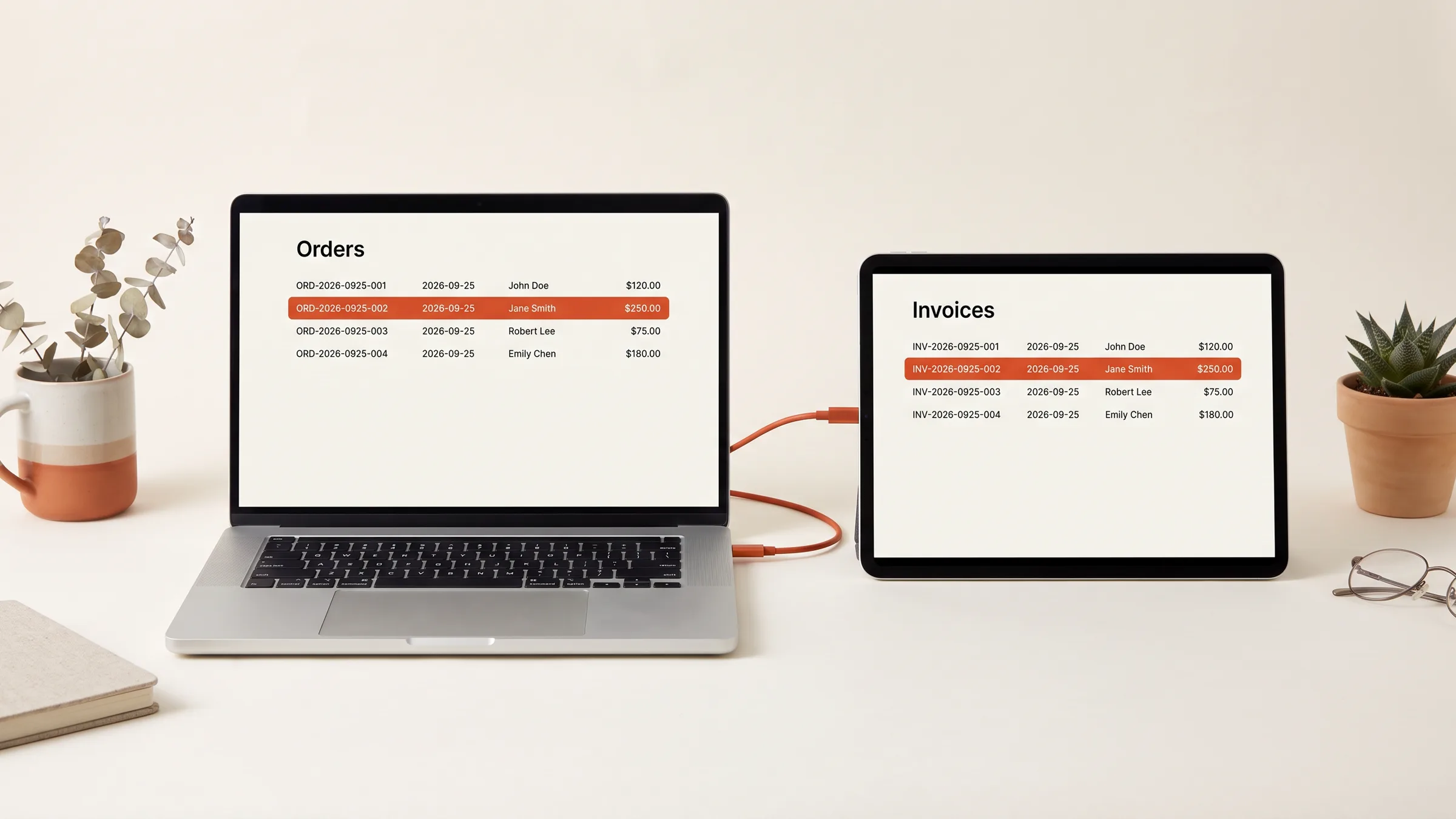
There is a moment every ecommerce founder hits -- usually around $50K/month in revenue -- where the accounting workflow breaks. Your bookkeeper is manually entering Shopify orders into Xero. They are spending 8 hours a week on data entry. Tax codes are inconsistent. Refunds from three weeks ago still have not been reconciled. And when your accountant asks for a clean P&L, the numbers do not match because 47 orders fell through the cracks between November 12 and November 19.
The Shopify-to-Xero pipeline is one of the most requested automations we build at Futureman Labs, and it is also one of the most deceptively complex. On the surface, it looks simple: order comes in, invoice goes out. In practice, you are dealing with tax jurisdiction mapping, multi-currency conversions, partial refunds, gift cards, discount allocations, and the fact that Shopify and Xero have fundamentally different data models for what constitutes a "sale."
This guide covers the full architecture for an enterprise-grade Shopify-to-Xero invoicing pipeline -- the same system we deploy for brands doing $2M-$30M in annual revenue.
Why the Native Shopify-Xero Apps Fall Short
There are several apps that claim to sync Shopify orders to Xero: A2X, Synder, Amaka, and the official Xero integration. Some of these are genuinely good. A2X, in particular, is well-built for standard accounting workflows. But they all share limitations that become deal-breakers at scale:
- Summary posting vs. individual invoices. Most apps post a daily or batch summary journal entry to Xero. This is fine for accounting but useless if you need to send individual invoices to customers (required for B2B/wholesale orders, certain tax jurisdictions, or simply as a professional touch).
- Limited chart of accounts mapping. You get maybe 5-10 mapping rules. If you sell across multiple product categories with different revenue accounts, or if you need to split shipping revenue from product revenue from gift card redemptions, you quickly outgrow the configuration options.
- No conditional logic. You cannot say "if the order has tag X, use this Xero template" or "if the customer is in the EU, apply reverse charge VAT." Every order gets the same treatment.
- Refund handling is an afterthought. Most apps create a credit note when a full refund is processed. Partial refunds, restocking fees, return shipping deductions, and exchanges are either handled poorly or not at all.
The Pipeline Architecture
Here is the system we build, using n8n as the orchestration layer (though the same logic applies if you prefer Make.com or a custom Node.js service):
Shopify Order Webhook (orders/paid)
  |
  v
n8n Workflow: Order Processor
  |
  |-- 1. Deduplicate (check idempotency key)
  |-- 2. Validate order data
  |-- 3. Map line items to Xero accounts
  |-- 4. Calculate tax by jurisdiction
  |-- 5. Handle currency conversion
  |-- 6. Create Xero invoice (ACCREC)
  |-- 7. Generate PDF
  |-- 8. Email invoice to customer
  |-- 9. Log to Google Sheets (audit trail)
  |
Shopify Refund Webhook (refunds/create)
  |
  v
n8n Workflow: Refund Processor
  |
  |-- 1. Match to original invoice
  |-- 2. Create Xero credit note
  |-- 3. Allocate credit to invoice
  |-- 4. Update Google Sheets log
Why Webhooks, Not Polling
Some guides suggest polling Shopify's orders endpoint every 5 minutes. Do not do this. Polling misses orders during API outages, creates unnecessary load, and introduces a latency window where your data is stale. Shopify webhooks fire within seconds of an order event and include the complete order payload, eliminating the need for follow-up API calls in most cases.
Register webhooks for these topics:
orders/paid-- fires when payment is captured (not when the order is created, which matters for authorization-based payment flows)refunds/create-- fires when any refund is issuedorders/updated-- fires on any order change (use this to catch edits to fulfilled orders)
Step-by-Step: Building the Invoice Pipeline
Step 1: Deduplication and Idempotency
This is the step most tutorials skip, and it is the step that prevents the most common support ticket you will get: "Why did my customer receive two invoices?"
Shopify webhooks are "at least once" delivery. This means Shopify may send the same webhook multiple times, especially during periods of high load. Your pipeline must handle this gracefully.
The solution is an idempotency layer. In n8n, use a Function node at the start of the workflow:
const orderId = $input.first().json.id;
const orderNumber = $input.first().json.order_number;

// Check against a simple key-value store (Redis, Airtable, or even a Google Sheet)
const processed = await this.helpers.httpRequest({
  method: "GET",
  url: `https://your-api.com/processed-orders/${orderId}`,
});

if (processed.exists) {
  // Already processed, skip silently
  return [];
}

// Mark as processing
await this.helpers.httpRequest({
  method: "POST",
  url: `https://your-api.com/processed-orders`,
  body: { orderId, orderNumber, status: "processing", timestamp: new Date().toISOString() },
});

return $input.all();
For a lightweight alternative, use a Google Sheet as your idempotency store. Each processed order writes its Shopify Order ID, Xero Invoice ID, and timestamp. Before processing a new webhook, search the sheet for the Order ID. This doubles as your audit trail.
Step 2: Mapping Line Items to Xero Chart of Accounts
This is where the real complexity lives. Xero expects every invoice line item to be assigned to an account code from your chart of accounts. Shopify does not have an equivalent concept.
You need a mapping layer. Here is how we structure it:
// Account code mapping configuration
const accountMapping = {
  // By product type (Shopify product_type field)
  "Apparel": "200",        // Revenue - Clothing
  "Accessories": "201",    // Revenue - Accessories
  "Gift Card": "260",      // Gift Card Liability (NOT revenue!)
  "default": "200",        // Fallback revenue account

  // Special line items
  "shipping": "210",       // Shipping Revenue
  "discount": "420",       // Discount Expense (contra-revenue)
  "tip": "215",            // Tips / Gratuity
};

// Transform Shopify line items to Xero line items
const xeroLineItems = shopifyOrder.line_items.map(item => ({
  Description: `${item.title} - ${item.variant_title || "Default"}`,
  Quantity: item.quantity,
  UnitAmount: parseFloat(item.price),
  AccountCode: accountMapping[item.product_type] || accountMapping["default"],
  TaxType: determineTaxType(item, shopifyOrder), // See tax section below
  // Include discount allocation at line level
  DiscountRate: item.total_discount > 0
    ? ((parseFloat(item.total_discount) / (parseFloat(item.price) * item.quantity)) * 100).toFixed(2)
    : 0,
  Tracking: [
    {
      Name: "Sales Channel",
      Option: shopifyOrder.source_name === "web" ? "Online Store" : shopifyOrder.source_name,
    },
  ],
}));

// Add shipping as a separate line item
if (parseFloat(shopifyOrder.total_shipping_price_set.shop_money.amount) > 0) {
  xeroLineItems.push({
    Description: "Shipping",
    Quantity: 1,
    UnitAmount: parseFloat(shopifyOrder.total_shipping_price_set.shop_money.amount),
    AccountCode: accountMapping["shipping"],
    TaxType: determineTaxType({ product_type: "shipping" }, shopifyOrder),
  });
}
Step 3: Tax Calculation Across Jurisdictions
Tax is the part that makes founders' eyes glaze over and accountants' blood pressure rise. Shopify calculates tax at checkout and includes the breakdown in the order payload. Xero also calculates tax. If you let both systems calculate independently, the amounts will not match -- rounding differences, rate discrepancies, and jurisdictional edge cases will create pennies of drift that compound into real discrepancies over thousands of orders.
The correct approach: use Shopify's tax amounts as the source of truth and force-set them in Xero.
function determineTaxType(item, order) {
  // For US-based stores
  const shippingProvince = order.shipping_address?.province_code;
  const taxLines = order.tax_lines;

  if (taxLines.length === 0) return "NONE";  // Tax-exempt order

  // Map Shopify tax titles to Xero tax types
  // These must be configured in your Xero org first
  const taxTypeMap = {
    "US State Tax": "OUTPUT",
    "CA PST": "OUTPUT",
    "CA GST/HST": "OUTPUT",
    "VAT": "OUTPUT2",        // EU VAT
    "GB VAT": "OUTPUT2",
    "AU GST": "BASEXCLUDED",
  };

  const primaryTax = taxLines[0]?.title || "";
  return taxTypeMap[primaryTax] || "OUTPUT";
}
For each line item, calculate the effective tax amount from Shopify's data and pass it to Xero as a line amount with tax set to "Amounts are Tax Inclusive." This ensures the invoice total in Xero matches the charge to the penny.
Is your half-built automation a six-week finish?
Take the free Finish Score. Ten questions, two minutes, and a report on what to settle before you build.
Take the Finish ScoreStep 4: Multi-Currency Handling
If you sell internationally, Shopify captures orders in the customer's local currency (presentment currency) while your shop has a base currency. Xero needs to know both.
The Xero invoice should be created in the presentment currency (what the customer paid), with the exchange rate recorded:
const xeroInvoice = {
  Type: "ACCREC",
  Contact: {
    Name: `${shopifyOrder.customer.first_name} ${shopifyOrder.customer.last_name}`,
    EmailAddress: shopifyOrder.customer.email,
  },
  Date: shopifyOrder.created_at.split("T")[0],
  DueDate: shopifyOrder.created_at.split("T")[0], // Due immediately for ecommerce
  InvoiceNumber: `SH-${shopifyOrder.order_number}`,
  Reference: shopifyOrder.name, // e.g., "#1042"
  CurrencyCode: shopifyOrder.presentment_currency,
  CurrencyRate: shopifyOrder.currency_exchange_adjustment
    ? parseFloat(shopifyOrder.currency_exchange_adjustment.final_amount) /
      parseFloat(shopifyOrder.total_price)
    : 1.0,
  Status: "AUTHORISED",
  LineItems: xeroLineItems,
  LineAmountTypes: "Inclusive", // Shopify prices are tax-inclusive by default in most regions
};
One critical note: Xero requires that any non-base currency is enabled in your organization settings before you can create invoices in that currency. If a customer pays in Thai Baht and you have not enabled THB in Xero, the API call will fail silently with a validation error. Your pipeline needs to catch this and either auto-enable the currency (via Xero's API) or flag it for manual review.
Step 5: PDF Invoice Generation and Delivery
Once the Xero invoice is created, you have two options for PDF generation:
Option A: Use Xero's built-in PDF. After creating the invoice, call GET /Invoices/{InvoiceID} with Accept: application/pdf. This returns a PDF using your Xero invoice template. Simple, but you are limited to Xero's template customization options.
Option B: Generate a custom PDF. Use a service like PDFMonkey, Carbone.io, or a self-hosted Puppeteer instance to generate a branded PDF from a custom template. This gives you full control over the design and lets you include elements Xero templates do not support (QR codes for payment, product images, loyalty points balance).
Either way, the delivery step sends the PDF to the customer via email. We typically use a transactional email service (Postmark or Amazon SES) rather than Xero's built-in email to maintain consistent branding and deliverability:
// Send invoice via Postmark
await this.helpers.httpRequest({
  method: "POST",
  url: "https://api.postmarkapp.com/email",
  headers: {
    "X-Postmark-Server-Token": "your-token",
    "Content-Type": "application/json",
  },
  body: {
    From: "invoices@yourstore.com",
    To: shopifyOrder.customer.email,
    Subject: `Invoice for Order ${shopifyOrder.name}`,
    HtmlBody: invoiceEmailTemplate,
    Attachments: [
      {
        Name: `invoice-${shopifyOrder.order_number}.pdf`,
        Content: pdfBase64,
        ContentType: "application/pdf",
      },
    ],
  },
});
Step 6: The Google Sheets Audit Trail
Every order that flows through the pipeline writes a row to a Google Sheet. This serves three purposes:
- Idempotency store -- quick lookup to prevent duplicate processing.
- Audit trail -- your accountant can see exactly which Shopify orders mapped to which Xero invoices, with timestamps.
- Reconciliation tool -- at month-end, compare Shopify's order export against this sheet to catch any gaps.
The sheet columns:
| Timestamp | Shopify Order # | Shopify Order ID | Customer Email | Total | Currency | Xero Invoice # | Xero Invoice ID | Status | Error |
|---|
This is the "export shopify orders to google sheets automatically formatted" capability that many operators search for. The difference is that this is not a raw data dump -- it is a structured, validated log that feeds directly into your accounting workflow.
Handling Refunds and Credit Notes
Refunds are where most automations silently break. Here are the scenarios you need to handle:
Full Refund
Straightforward: create a Xero credit note for the full invoice amount and allocate it against the original invoice. The original invoice status changes to "Voided" if the credit note fully covers it.
Partial Refund (Specific Line Items)
Shopify's refund payload includes refund_line_items specifying which items were refunded and in what quantity. Create a Xero credit note with only those line items, using the same account codes as the original invoice:
const creditNoteLineItems = shopifyRefund.refund_line_items.map(rli => {
  const originalItem = shopifyOrder.line_items.find(li => li.id === rli.line_item_id);
  return {
    Description: `Refund: ${originalItem.title}`,
    Quantity: rli.quantity,
    UnitAmount: parseFloat(rli.subtotal) / rli.quantity,
    AccountCode: accountMapping[originalItem.product_type] || accountMapping["default"],
    TaxType: determineTaxType(originalItem, shopifyOrder),
  };
});
Partial Refund (Arbitrary Amount)
Sometimes merchants issue a "goodwill" refund -- $10 off a $50 order, not tied to any specific line item. Shopify represents this as a refund with no refund_line_items. Create a credit note with a single line item posted to a "Refunds & Adjustments" account:
if (shopifyRefund.refund_line_items.length === 0) {
  // Arbitrary amount refund
  creditNoteLineItems.push({
    Description: `Goodwill refund for Order ${shopifyOrder.name}`,
    Quantity: 1,
    UnitAmount: parseFloat(
      shopifyRefund.transactions.find(t => t.kind === "refund")?.amount || 0
    ),
    AccountCode: "430", // Refunds & Adjustments
    TaxType: "NONE",
  });
}
Refund with Restocking Fee
If your store charges a restocking fee, the refund amount is less than the original line item amount. The difference (the restocking fee) should stay as revenue. Your credit note should reflect the actual refund amount, not the original item price.
Exchange (Return + New Order)
Shopify treats exchanges as two separate events: a refund on the original order and a new order for the replacement. Your pipeline handles these independently -- the refund flow creates a credit note, and the new order flow creates a new invoice. No special logic needed, as long as both webhooks are processed.
Common Pitfalls and How to Avoid Them
Pitfall 1: Pending Orders Creating Invoices
If you trigger on orders/create instead of orders/paid, you will create invoices for orders that may never be paid (abandoned checkouts that briefly create an order, payment authorization failures). Always use orders/paid as your trigger.
Pitfall 2: Timing Issues with Rapid Refunds
A customer places an order and immediately requests a cancellation. The orders/paid and refunds/create webhooks fire within seconds of each other. If the refund webhook arrives before the invoice is fully created in Xero, the credit note creation fails because there is no invoice to reference.
Solution: add a 30-second delay to the refund workflow, then check if the original invoice exists in Xero. If it does not, retry with exponential backoff up to 5 minutes. If it still does not exist, flag for manual review.
Pitfall 3: Gift Card Purchases
Gift card sales are not revenue -- they are a liability. When a customer buys a $50 gift card, you owe them $50 of future goods. The revenue is recognized when they redeem the gift card on a future order. Your mapping must route gift card line items to a liability account (e.g., "Gift Card Liability" - Account 260), not a revenue account.
Pitfall 4: Discount Code Allocation
When a customer uses a 20% off discount code on an order with 3 line items, Shopify allocates the discount proportionally across line items. Your Xero invoice needs to reflect this allocation, not post the discount as a separate negative line item. This matters for accurate per-product profitability reporting.
Pitfall 5: Shopify POS Orders
If you use Shopify POS in addition to online sales, POS orders have different data characteristics: no shipping address, potential for split payments, tips, and different tax handling. Your pipeline needs conditional logic to handle POS vs. online orders differently.
Cost and Maintenance
The self-hosted version of this pipeline (n8n on a $20/month VPS, Xero API access included in standard Xero plans) costs about $240/year to operate. Compare this to A2X at $69-$199/month ($828-$2,388/year) or a bookkeeper spending 8 hours/week at $35/hour ($14,560/year).
Ongoing maintenance is minimal -- maybe 2 hours per quarter to handle Shopify or Xero API updates. The real time savings come from eliminating month-end reconciliation scrambles and the back-and-forth with your accountant about missing transactions.
If the complexity described in this guide is beyond what your team can handle internally, or if you need the pipeline live within days rather than weeks, this is a core service offering at Futureman Labs. We have built this exact pipeline for over a dozen brands, and the typical deployment takes 5-7 business days from kickoff to production.
Want help mapping what to automate first?
Book a short call. No pitch deck, just a working session on where your operations leak time and money and what to fix first.
Book a callWant help mapping what to automate first?
Book a short call. No pitch deck, just a working session on where your operations leak time and money and what to fix first.
Book a callRelated Articles
Platform Integration
Shopify Multi-Location Inventory Sync: Stop Overselling
Stop overselling across Shopify locations. Build a real-time multi-location inventory sync system with free n8n templates, GraphQL examples, and reconciliation.
Jun 16, 2026 · 17 min read
Platform Integration
How to Automate Slack Alerts for Airtable Updates Using Make.com
Step-by-step guide to building Make.com scenarios that watch Airtable for changes and push formatted Slack notifications automatically.
Mar 26, 2026 · 13 min read
Platform Integration
Advanced Klaviyo Flows with n8n: Go Beyond Native Automations
Trigger Klaviyo emails from external data Shopify can't see. Step-by-step n8n workflows for cross-platform segmentation, custom events, and advanced flow logic.
Mar 23, 2026 · 17 min read
Platform Integration
Shopify to Google Sheets: Free Real-Time Dashboard (n8n Guide)
Build a live Shopify dashboard in Google Sheets using n8n webhooks — no paid apps, works on any plan. Step-by-step setup with ready-to-copy workflow templates.
Mar 23, 2026 · 19 min read
Platform Integration
How to Build a Shopify Subscription Management System
Reduce subscriber churn with automated dunning, win-back flows, and proactive retention. A technical guide to subscription automation for Shopify stores.
Mar 23, 2026 · 18 min read
Platform Integration
How to Connect Shopify to QuickBooks Automatically
A practical guide to syncing Shopify sales, refunds, fees, and payouts to QuickBooks Online. Covers native connectors, A2X, Synder, and custom workflows.
Mar 23, 2026 · 14 min read